
Switch GitHub Apps
Switching GitHub Apps allows you to change the GitHub App associated with your deployed applications, for example, when moving repositories to a new organization or account.
Why Switch GitHub Apps?
- Organization Changes: You've moved repositories to a new GitHub organization that requires a different GitHub App.
- Access Management: You want to use a GitHub App with different permissions or repository access.
IMPORTANT
This feature is introduced in Coolify v4.0.0-beta.408. To follow this guide, you must be using Coolify v4.0.0-beta.408 or a higher version.
1. Move Repositories (Optional)
If your goal is to move a repository to a different account or organization, go ahead and transfer it on GitHub.
If you just want to use a different GitHub App without changing repositories, you can skip this step.
2. Add New GitHub App to Coolify
We have a dedicated guide for setting up a GitHub App, which you can follow here: /applications/ci-cd/github/setup-app. Follow that guide and come back here.
3. Set Up Repository Access
After adding the new GitHub App, verify that it has access to the correct repositories by following these steps:
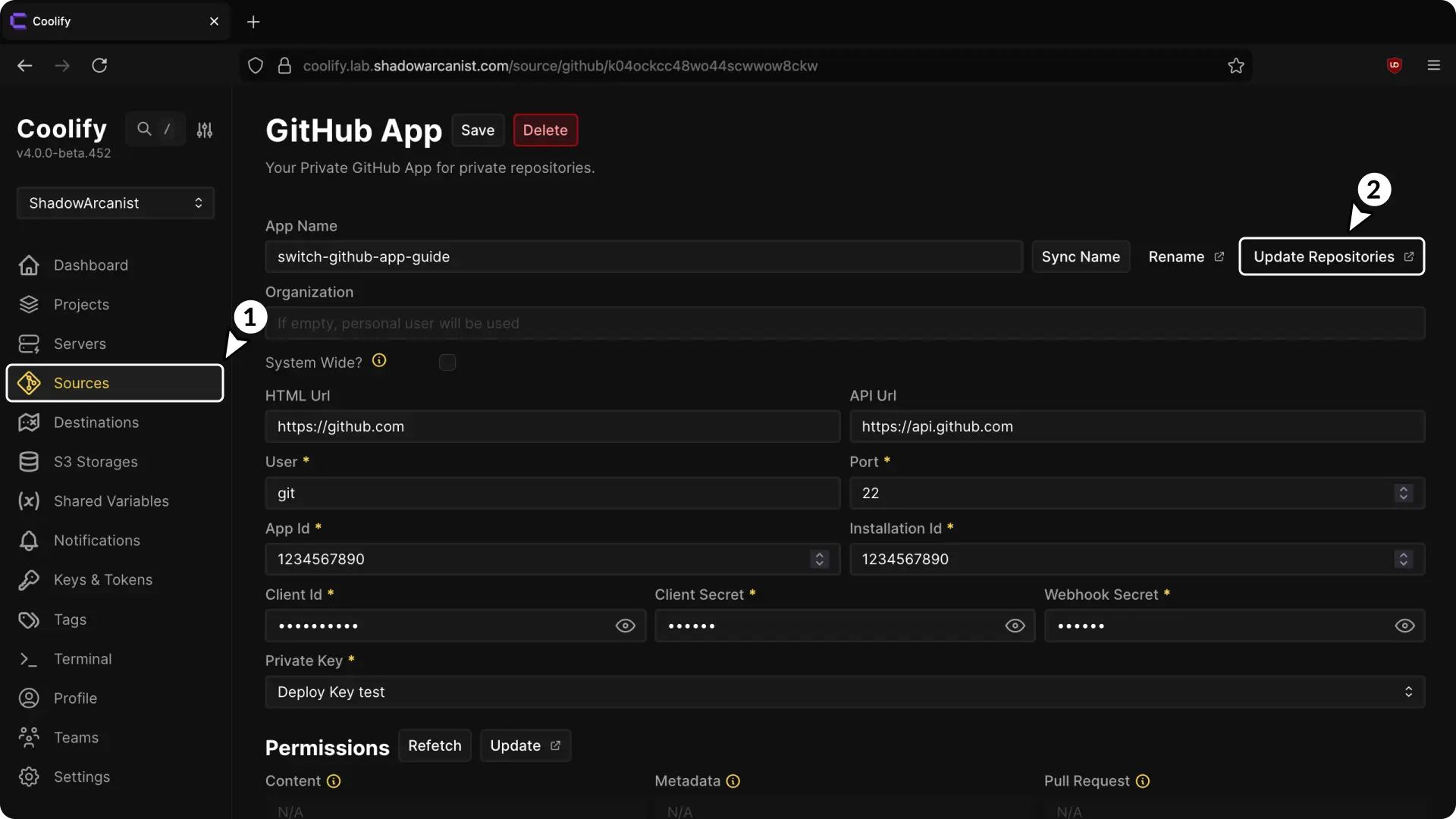
- In your Coolify dashboard, click on Sources from the sidebar, then select your new GitHub App.
- Click the Update Repositories button (this will redirect you to GitHub).
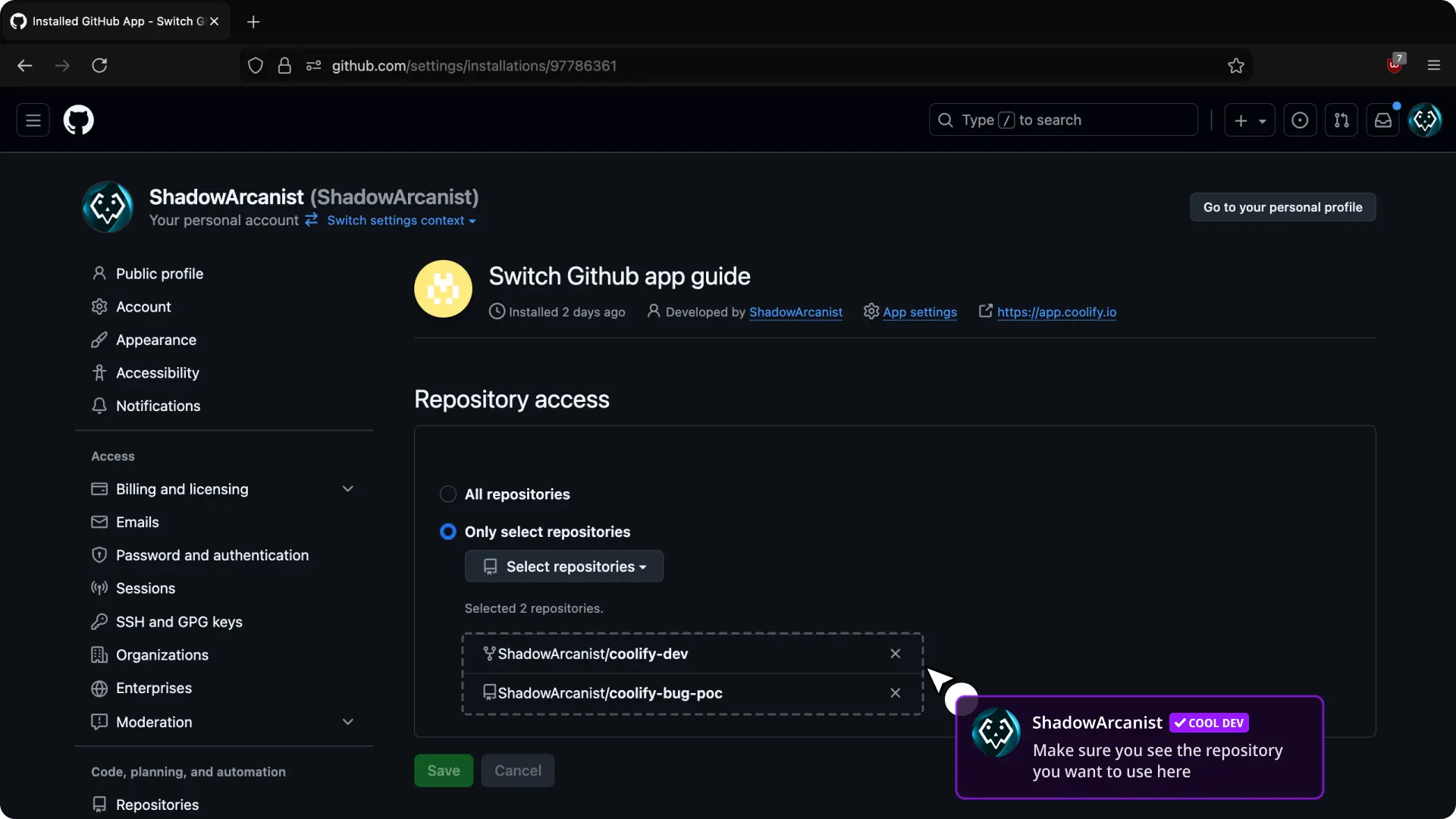
- Under the Repository access section, check if you can see the repositories that you want to use.
4. Switch Git Source on Coolify
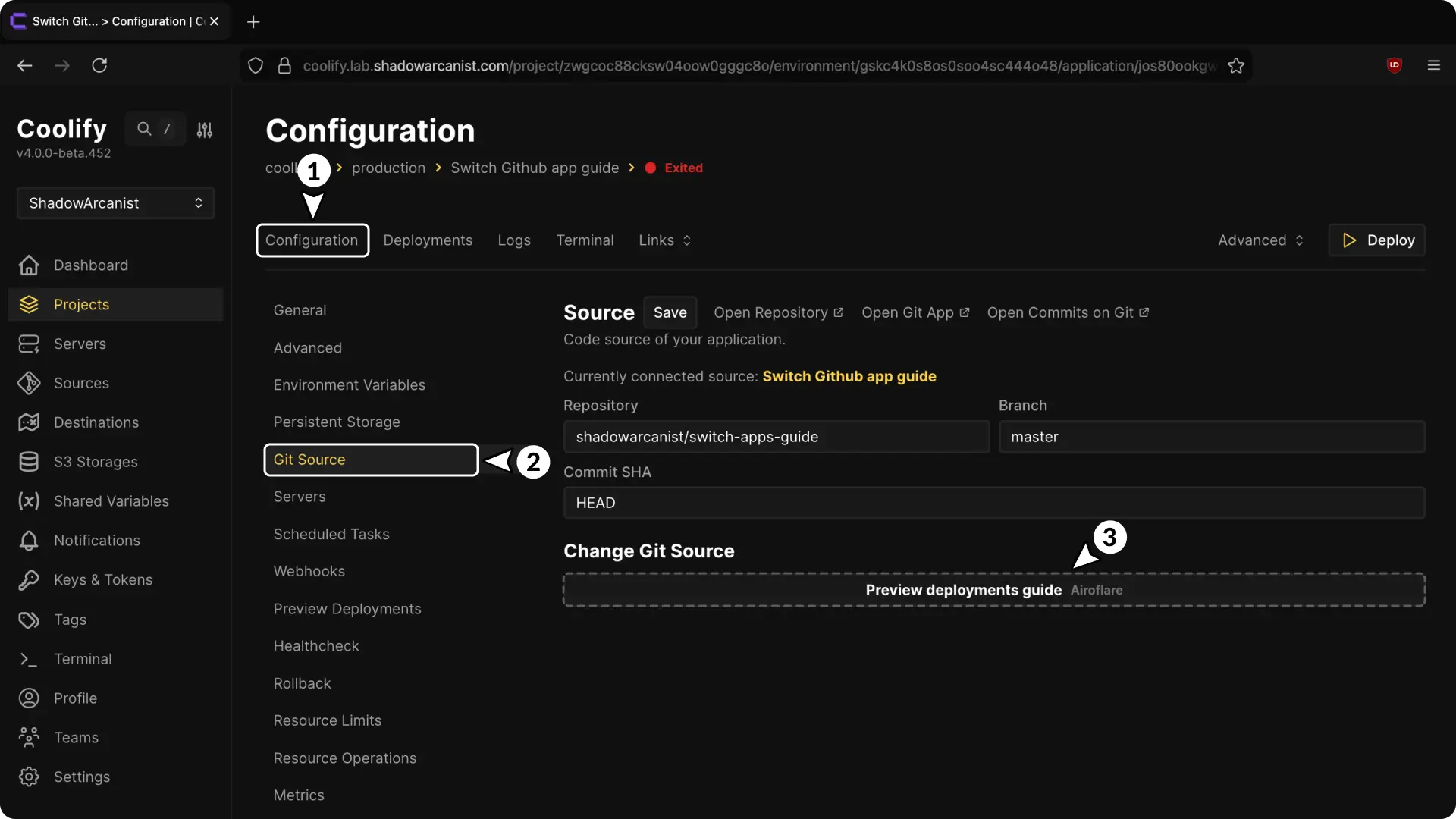
- Open your application configuration page.
- Go to the "Git Source" page.
- Select your new GitHub App.
5. Update Repository Name (If Applicable)
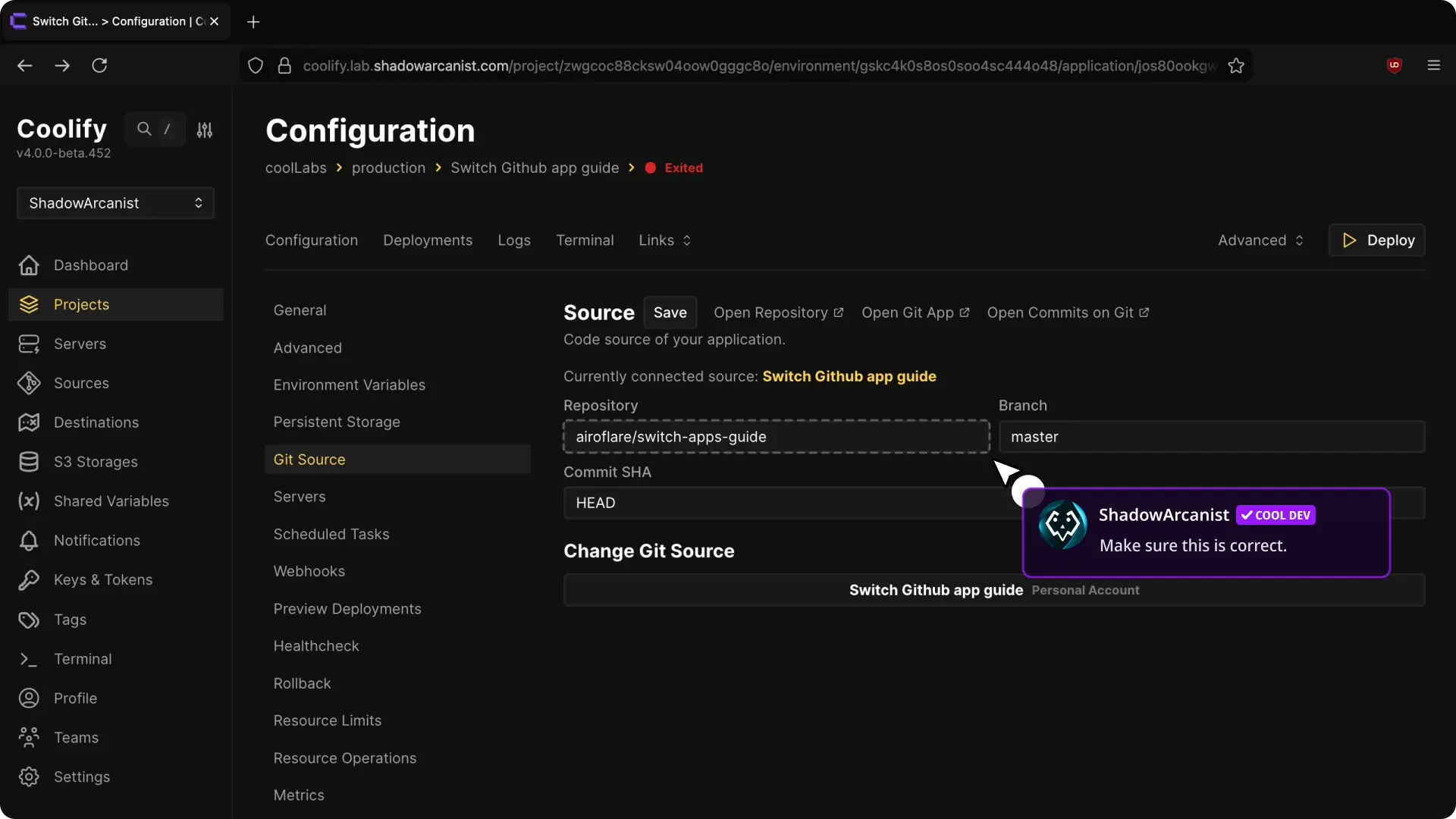
If you have moved your repository to a new organization or account, update the repository name accordingly (e.g., from shadowarcanist/switch-apps-guide to airoflare/switch-apps-guide).
You can skip this step if you didn't move your repository.
6. Redeploy the Application
To apply the new GitHub App to your application, redeploy it by clicking the Redeploy button.
That's it!
Setup GitHub App
Set up a GitHub App in Coolify to access and deploy from private GitHub repositories using automated or manual installation methods.
Integration
Connect GitLab repositories to Coolify with deploy keys, Gitlab container registry with deploy token, automatic webhooks, and merge request deployments for CI/CD automation