
Bad Gateway (502) Error
If your deployed application maybe works when you access it via your server’s IP address and port but shows a Bad Gateway error on your domain, the issue is most often due to misconfigured port settings, incorrect host mapping, or your app listening only on localhost.
What’s an Application and What's a Service?
-
Application: An Application is deployed by you using a Git repository or any deployment option except the one-click service.
-
Service: A Service is an app deployed using a Compose file or the one-click service on Coolify. These deployments may have different network settings and UI sections (for example, you might not see the Network section in your UI).
Symptoms
- The application maybe accessible via the server IP with a port number but not via the domain.
Diagnosis
Port Configuration
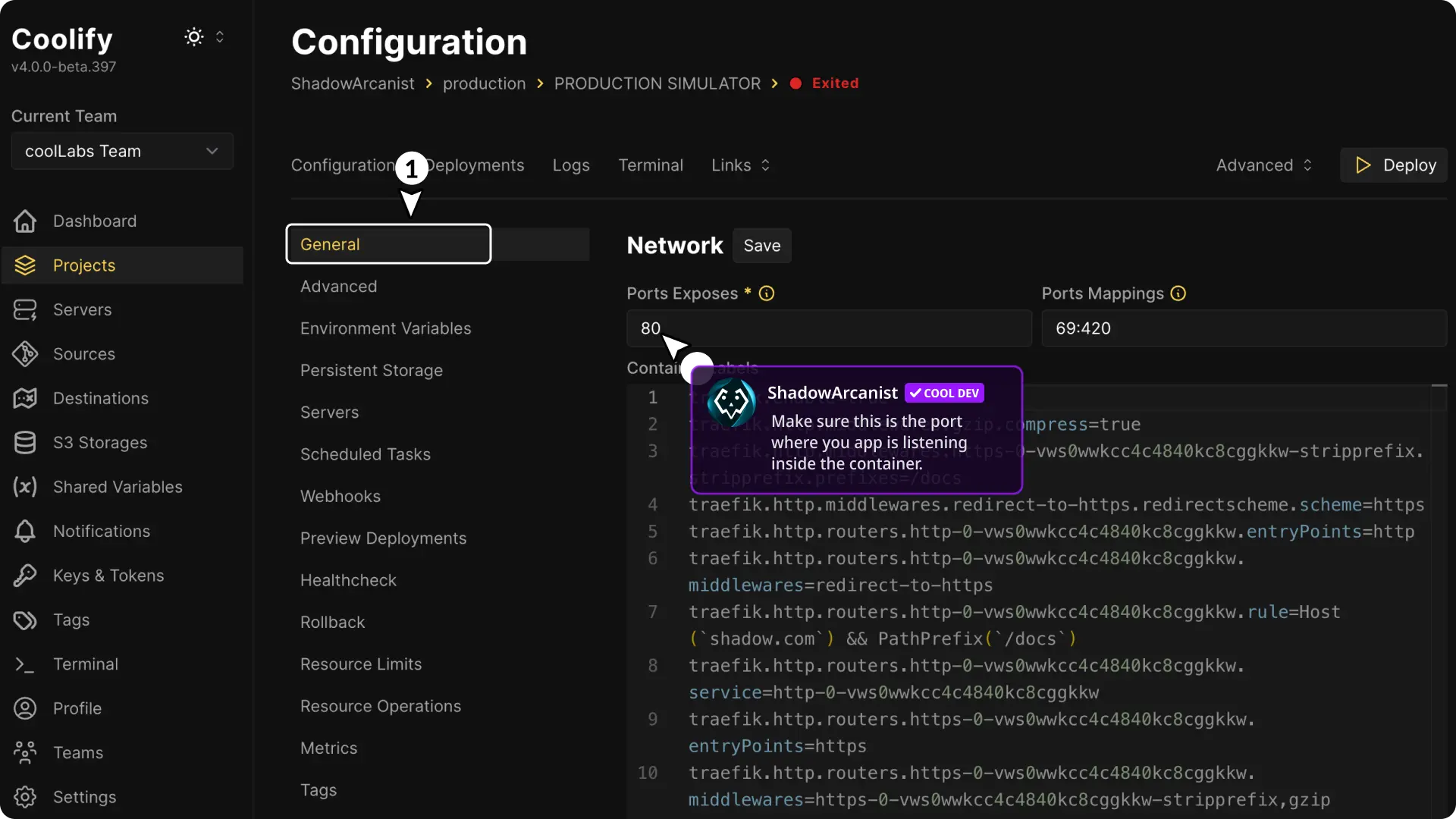
- Applications: Make sure the port your app is listening on is correctly entered in the Port Exposes field on the Coolify dashboard.
- Services: Check that your Compose or one-click service configuration has the appropriate network configuration.
Host Mapping
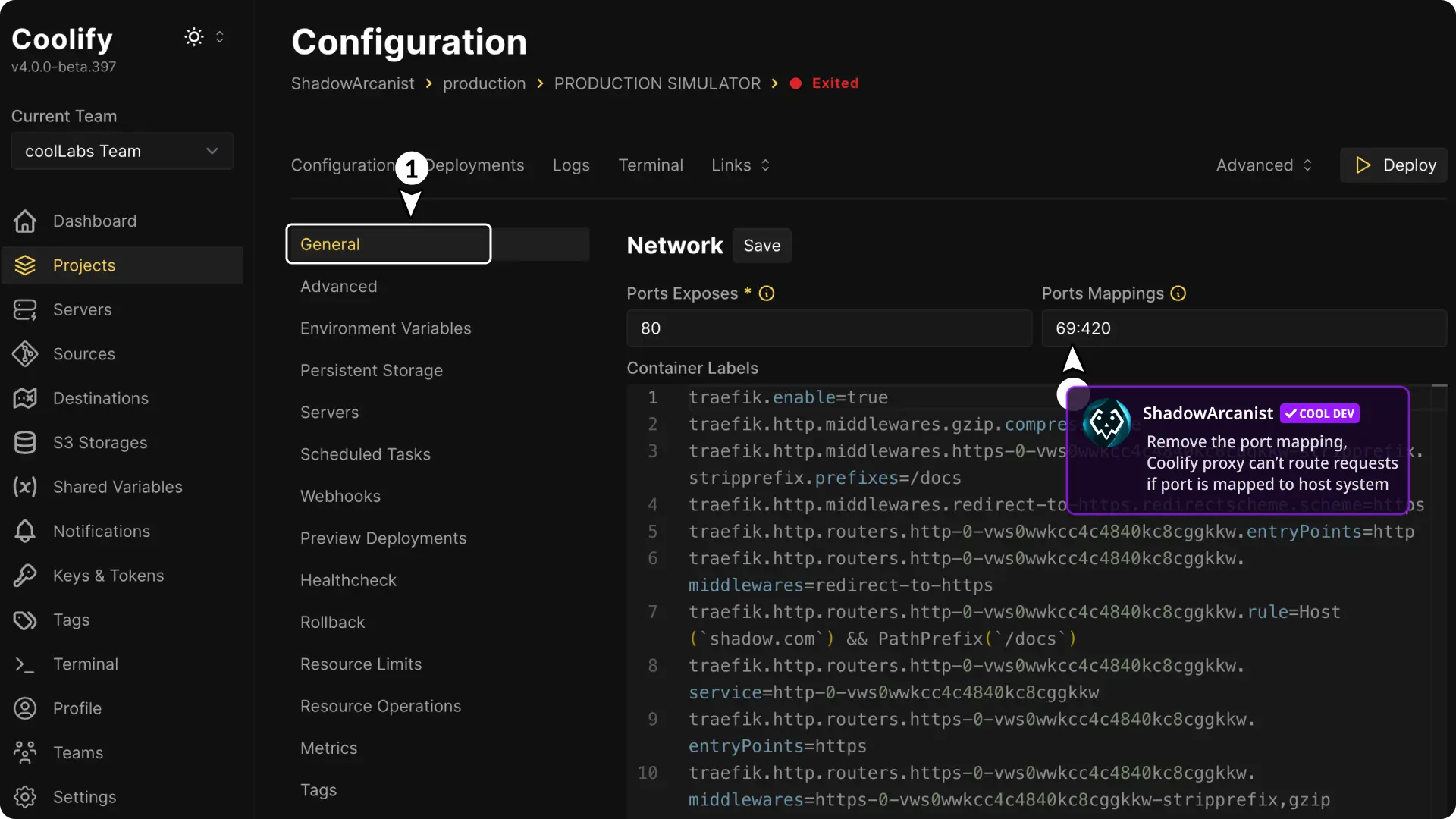
- Applications: Verify that the application’s port is not incorrectly mapped to the host system.
- Services: Confirm that any port mapping in your Compose file or service configuration aligns with the proxy routing requirements.
Listening Address
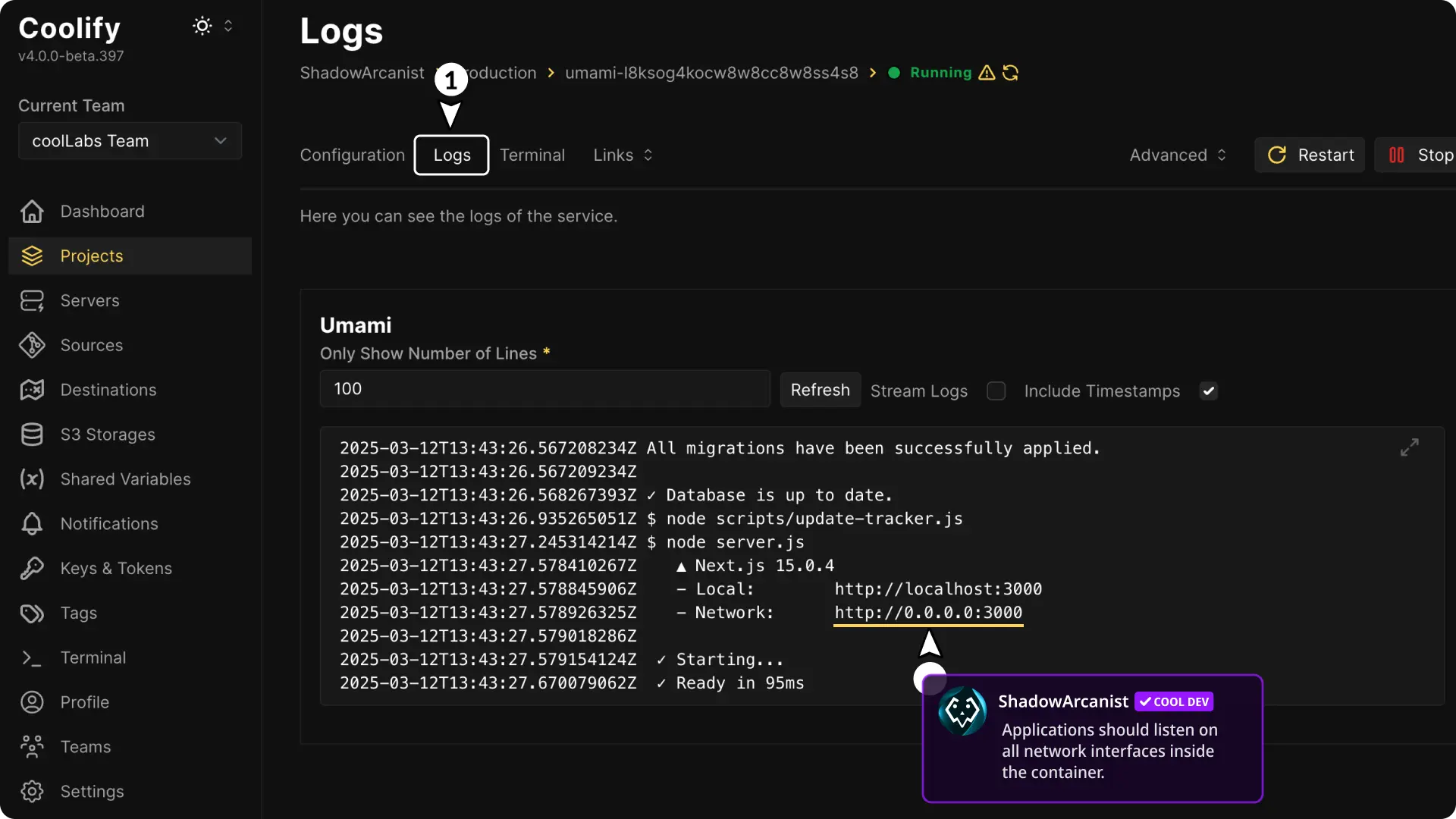
Check if the app is only listening to localhost inside the container. It should be configured to listen on all network interfaces (0.0.0.0).
Domain Port Inclusion
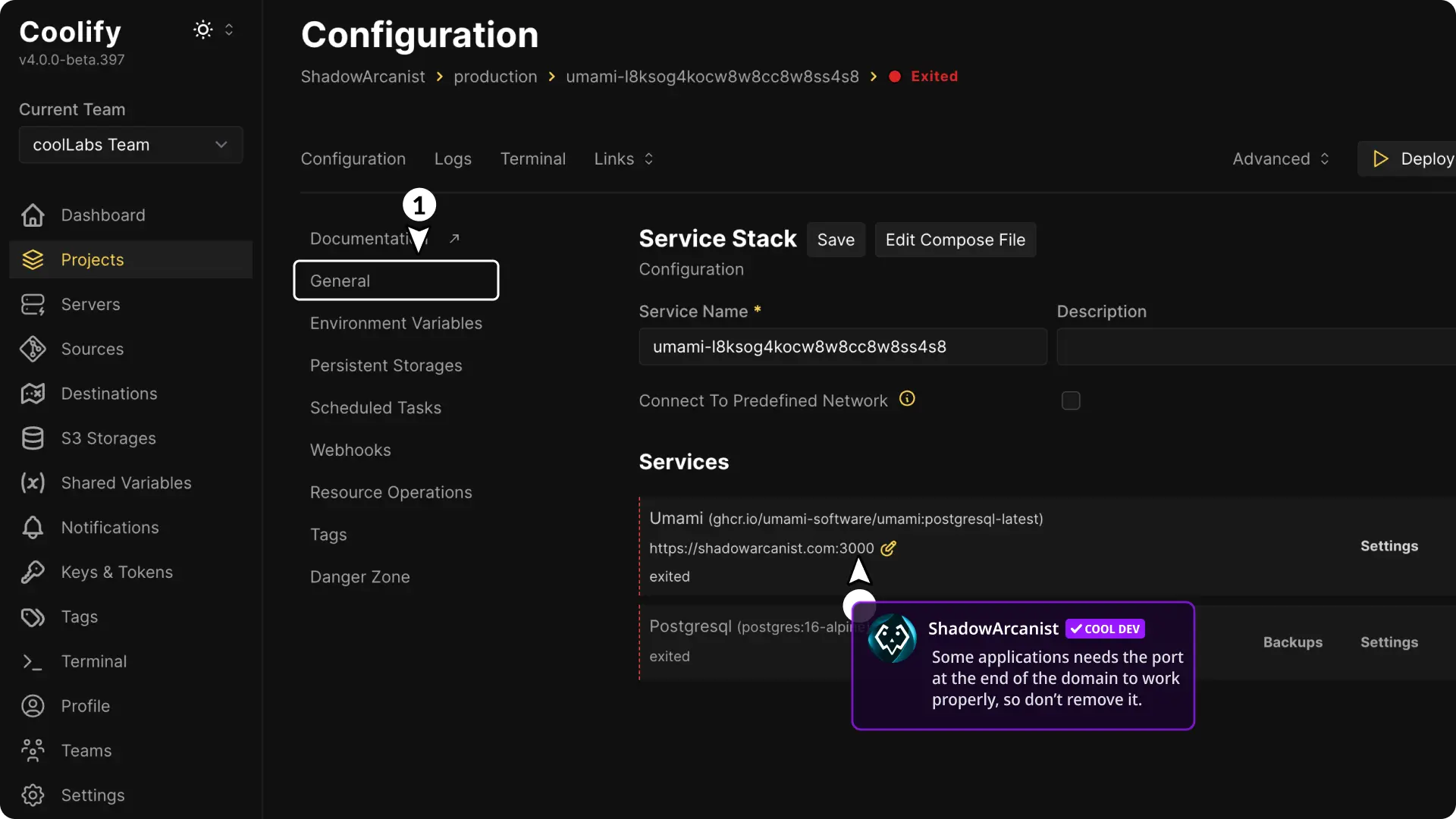
Make sure your domain URL includes the correct port number if required.
Container Status
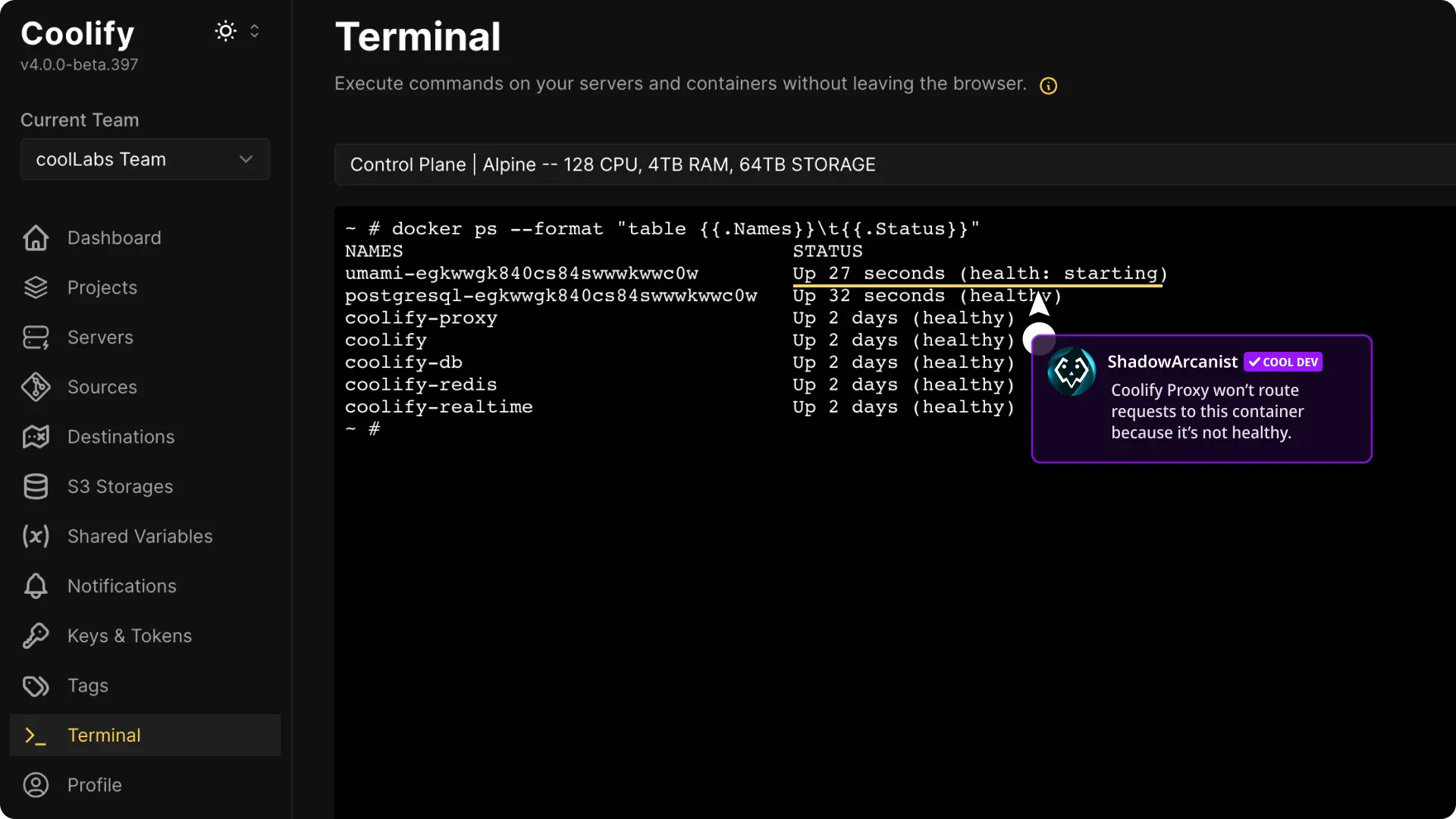
Check the status of the container where your app or service is running. Is it unhealthy? Stuck at Starting? A failing health check might be the reason.
Solution
Update Port Settings
Enter the correct port number in the Port Exposes field on the Coolify dashboard and restart your app.
Remove Host Port Mapping
If the port is mapped to the host system, remove the mapping so the proxy can route traffic correctly, then restart your app.
Adjust Listening Address
Change your application so it listens on all network interfaces (0.0.0.0) instead of just localhost.
Correct Domain URL
Add the correct port number at the end of your domain URL if needed, and restart your application.
Support
If these steps don’t solve the issue, join our Discord community and provide:
- App logs
- Coolify proxy logs
- Configuration screenshots
- Steps you’ve already tried
Docker Installation Failed
Fix Docker installation failures during Coolify setup by using Ubuntu LTS versions or manually installing Docker 24+ on non-LTS operating systems.
No Available Server Error
Fix No Available Server (503) errors in Coolify by diagnosing health checks, domain configuration, port mismatches, and Traefik proxy issues.