
GitHub Actions
GitHub Actions allow you to build your application as a Docker image and deploy it to Coolify automatically.
GitHub Actions provide greater flexibility for deploying your app, as you can trigger the workflow on events like commits to specific branches or releases on GitHub. You can also integrate checks and tests into your CI/CD pipeline, ensuring that new versions are deployed to Coolify only after all validations pass.
Process Overview
Set up GitHub Actions to build and publish a Docker image of your app to a container registry (e.g., GHCR or Docker Hub), then make an API call to Coolify to redeploy your app using the latest image pushed to the registry.
For reference, check out this example repository and its workflow file.
Example Data
The following data is used as an example in this guide. Please replace it with your actual data when following the steps:
- Docker Image:
shadowarcanist/tasklytics:latest - Registry:
ghcr.io - Branch:
main
1. Choose the Right Deployment Type
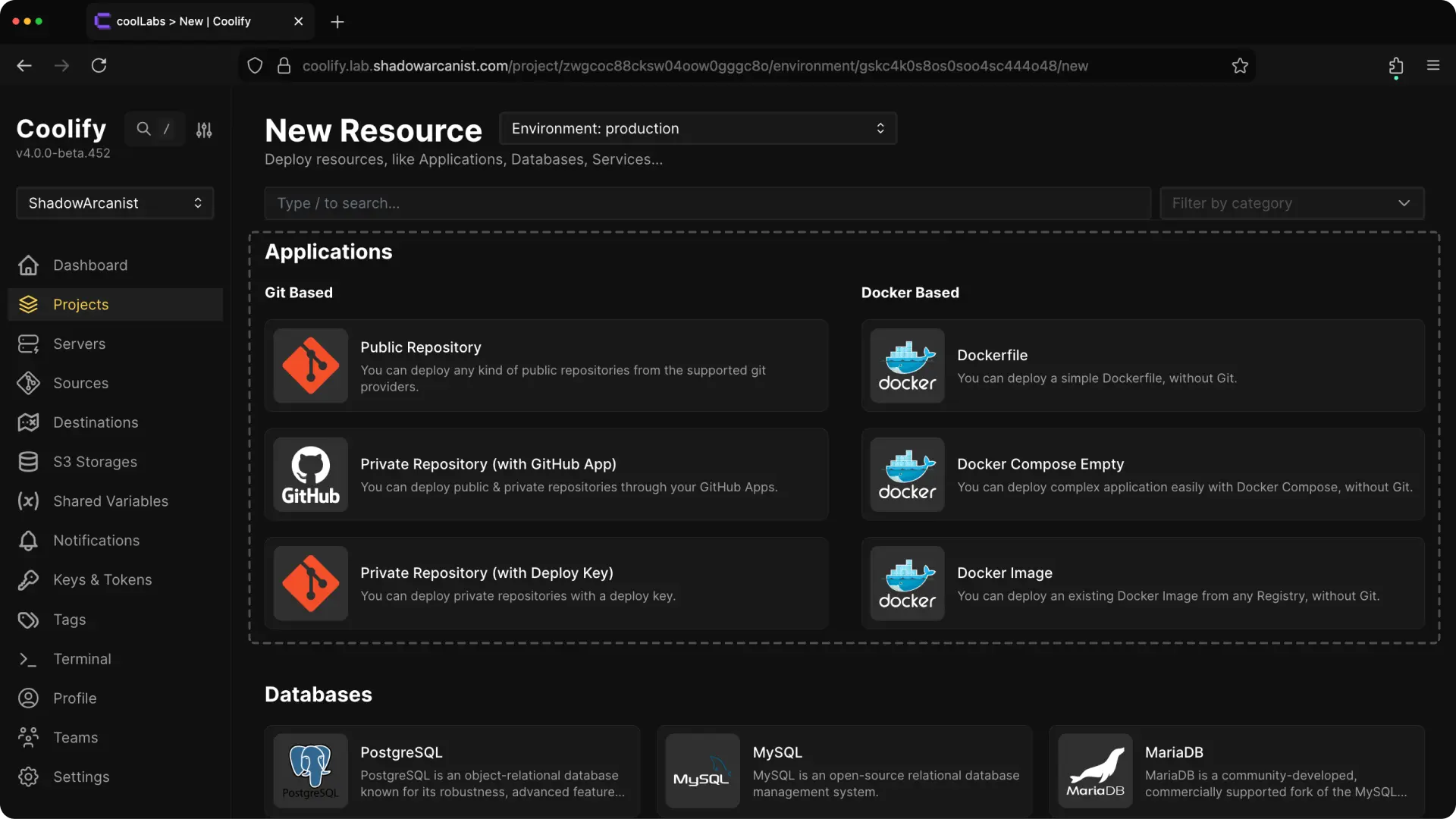
With GitHub Actions, build your application as a Docker image on GitHub runners and push it to a container registry. Select a deployment type that supports prebuilt Docker images.
For Git-based applications, use Docker Compose as your build pack. In your compose file, pull the prebuilt image instead of building it:
services:
  web:
    # OLD:
    # build:
    #   context: .
    #   dockerfile: Dockerfile

    # NEW:
    image: ghcr.io/shadowarcanist/tasklytics:latest
    ports:
      - "8080:8080"
For Docker-based applications, use the image name like ghcr.io/shadowarcanist/tasklytics:latest so Docker pulls the prebuilt image.
2. Enable Coolify API
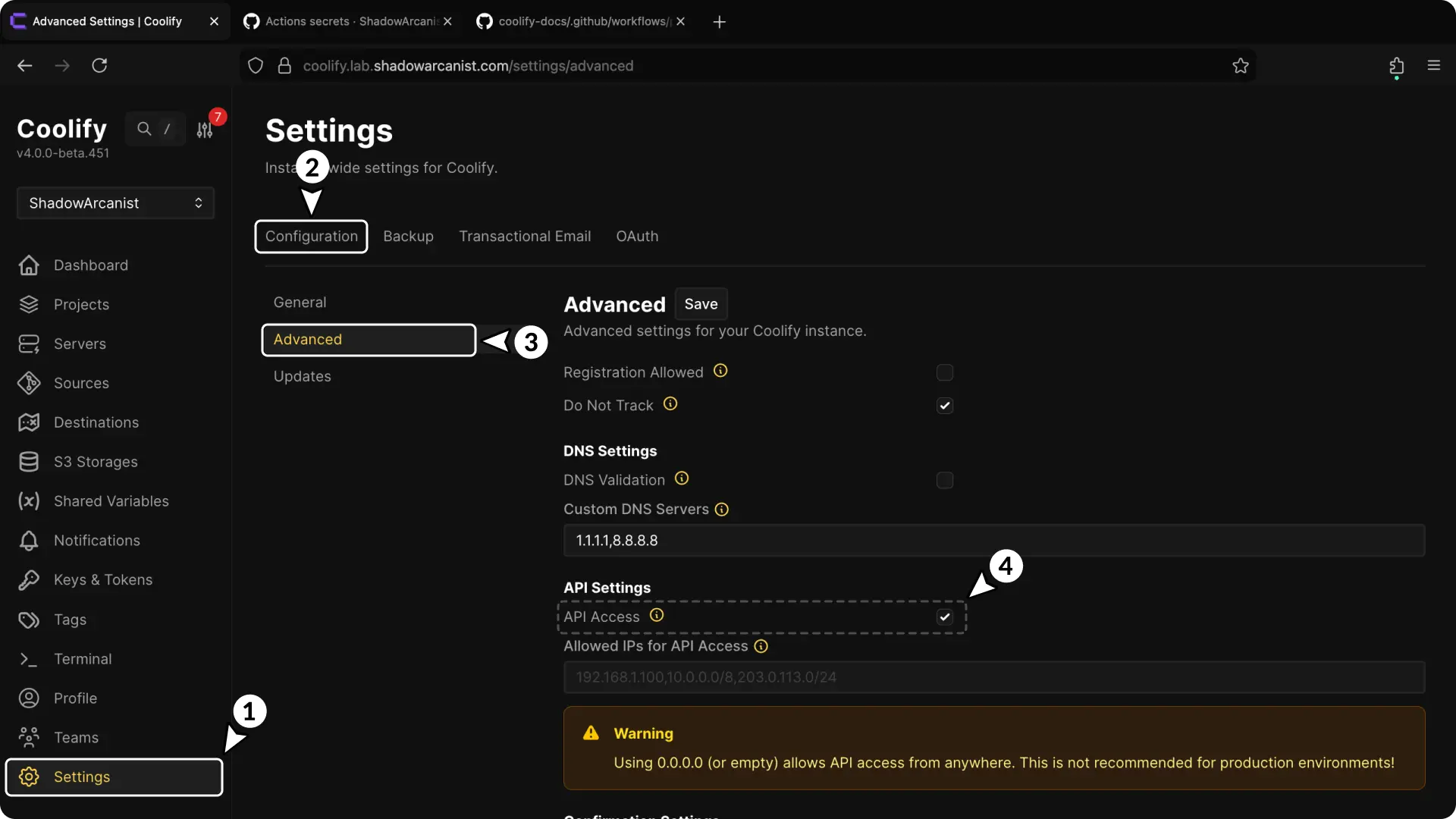
- Go to the "Settings" page in Coolify.
- Click on the "Configuration" tab.
- Click on "Advanced".
- Check the "API Access" option.
3. Create Coolify API Token
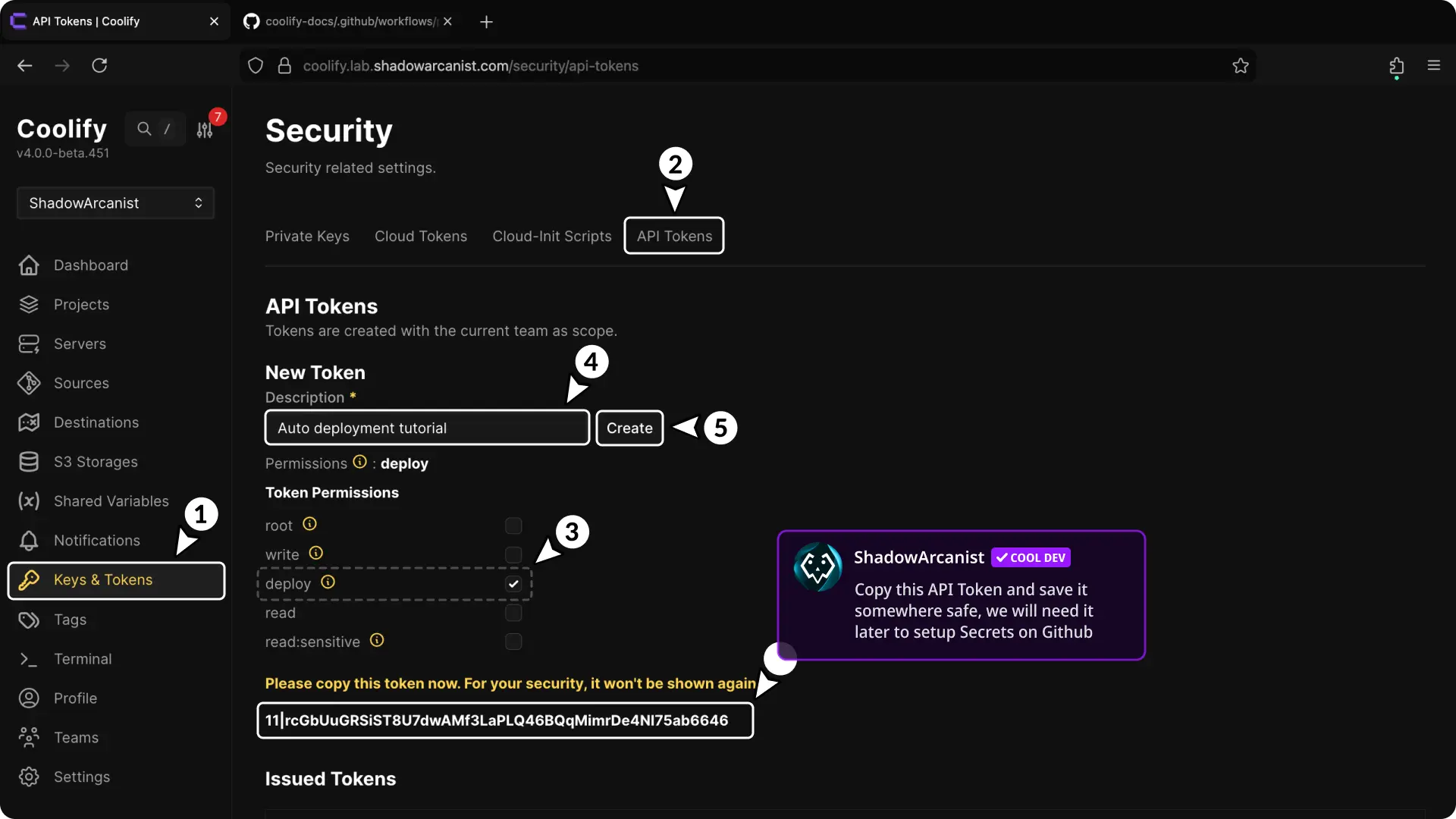
- Go to the "Keys & Tokens" page in Coolify.
- Click on the "API Tokens" tab.
- Check the "Deploy" option under Token permissions.
- Give your API token a name.
- Click "Create" button.
- Copy and save the generated API token somewhere safe (you'll need it later).
4. Get Coolify Webhook URL
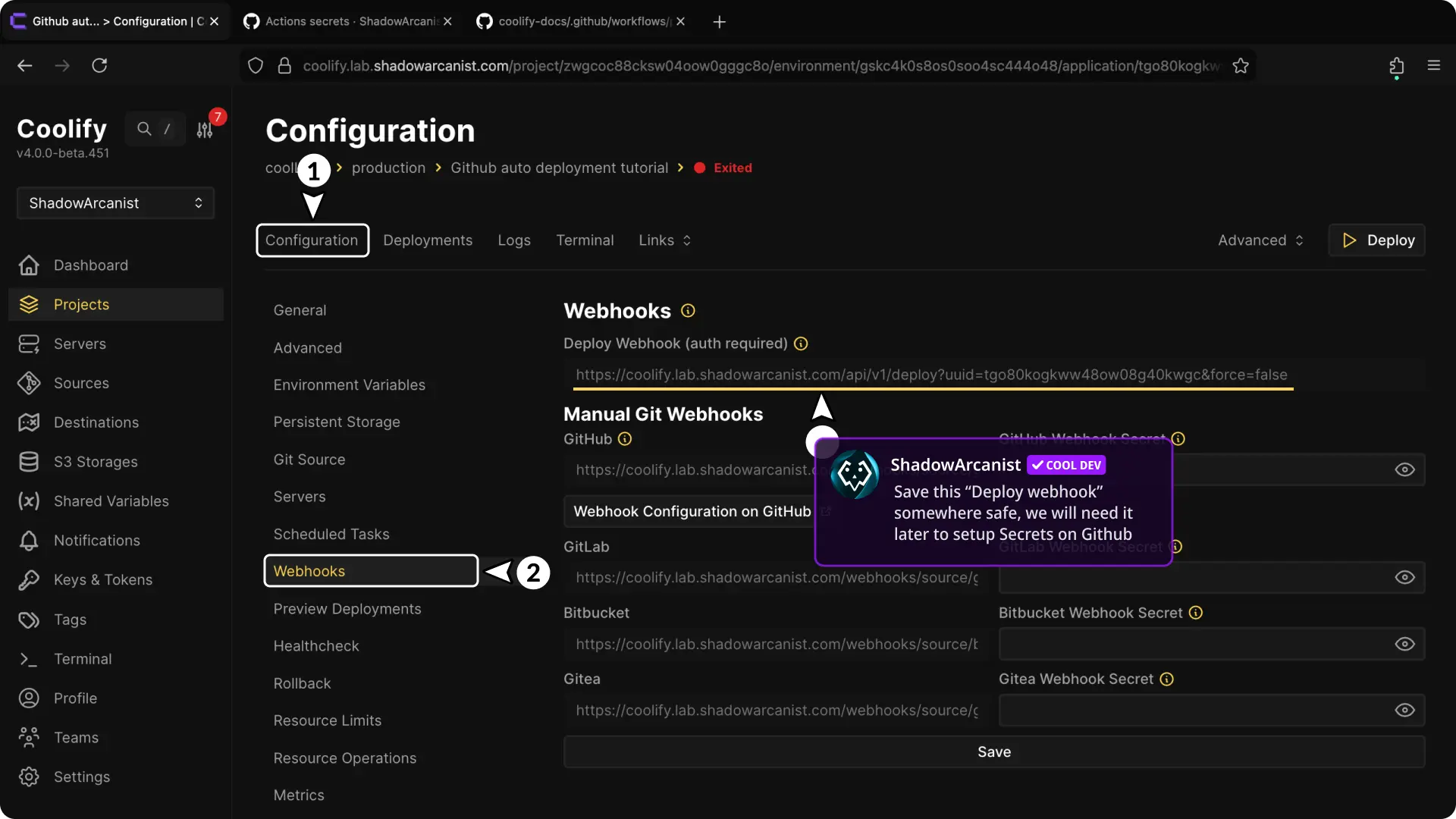
- Open your application's configuration page.
- Go to the "Webhook" page.
- Copy and save the "Deploy webhook" URL somewhere safe (you'll need it later).
5. Set Up Repository Secrets
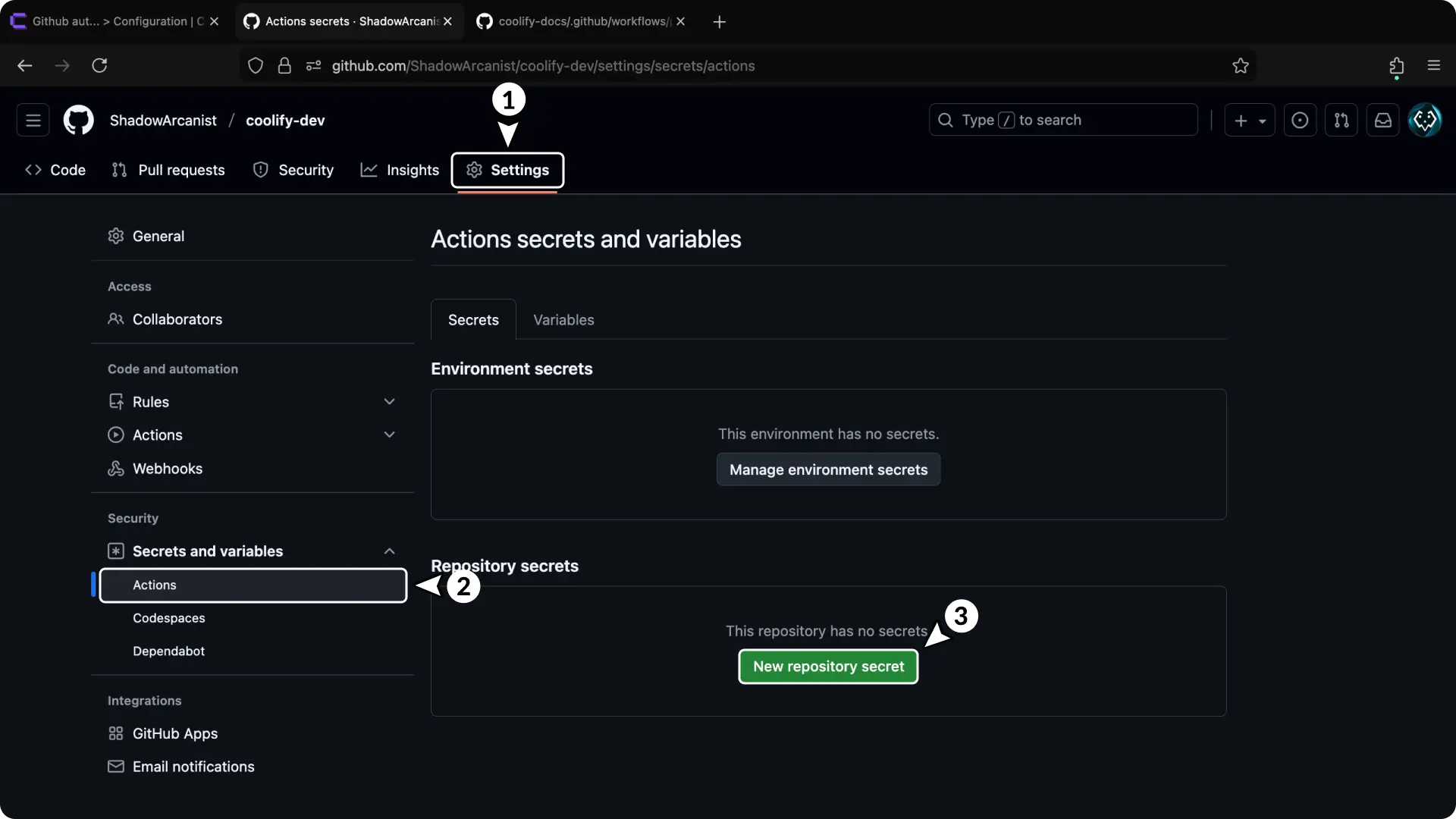
- Go to your GitHub repository settings.
- Click "Actions" in the sidebar (under "Secrets and variables").
- Click "New repository secret".
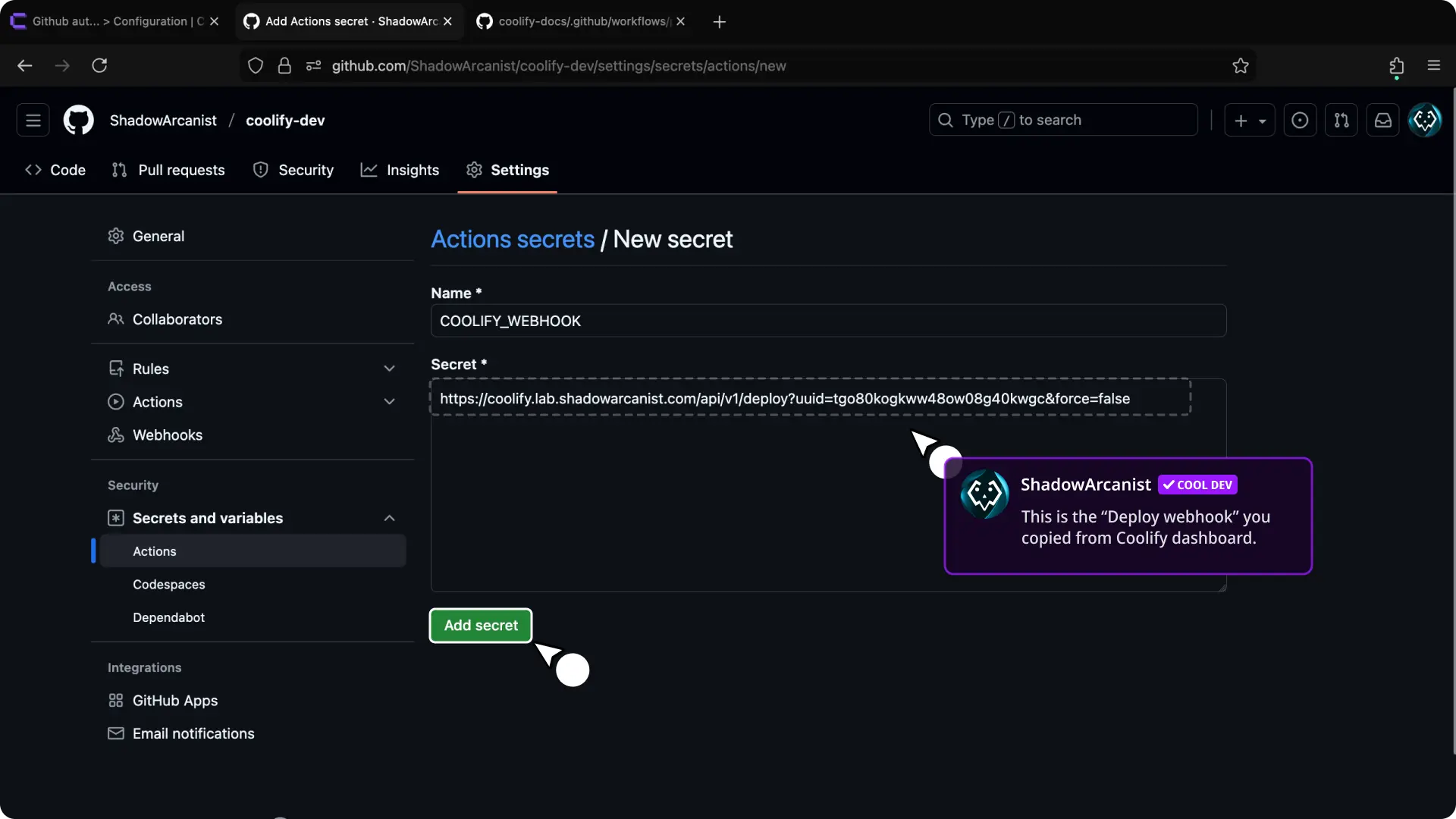
- Enter
COOLIFY_WEBHOOKas the name. - Enter the Coolify deploy webhook URL as the secret (from step 4).
- Click "Add secret" button.
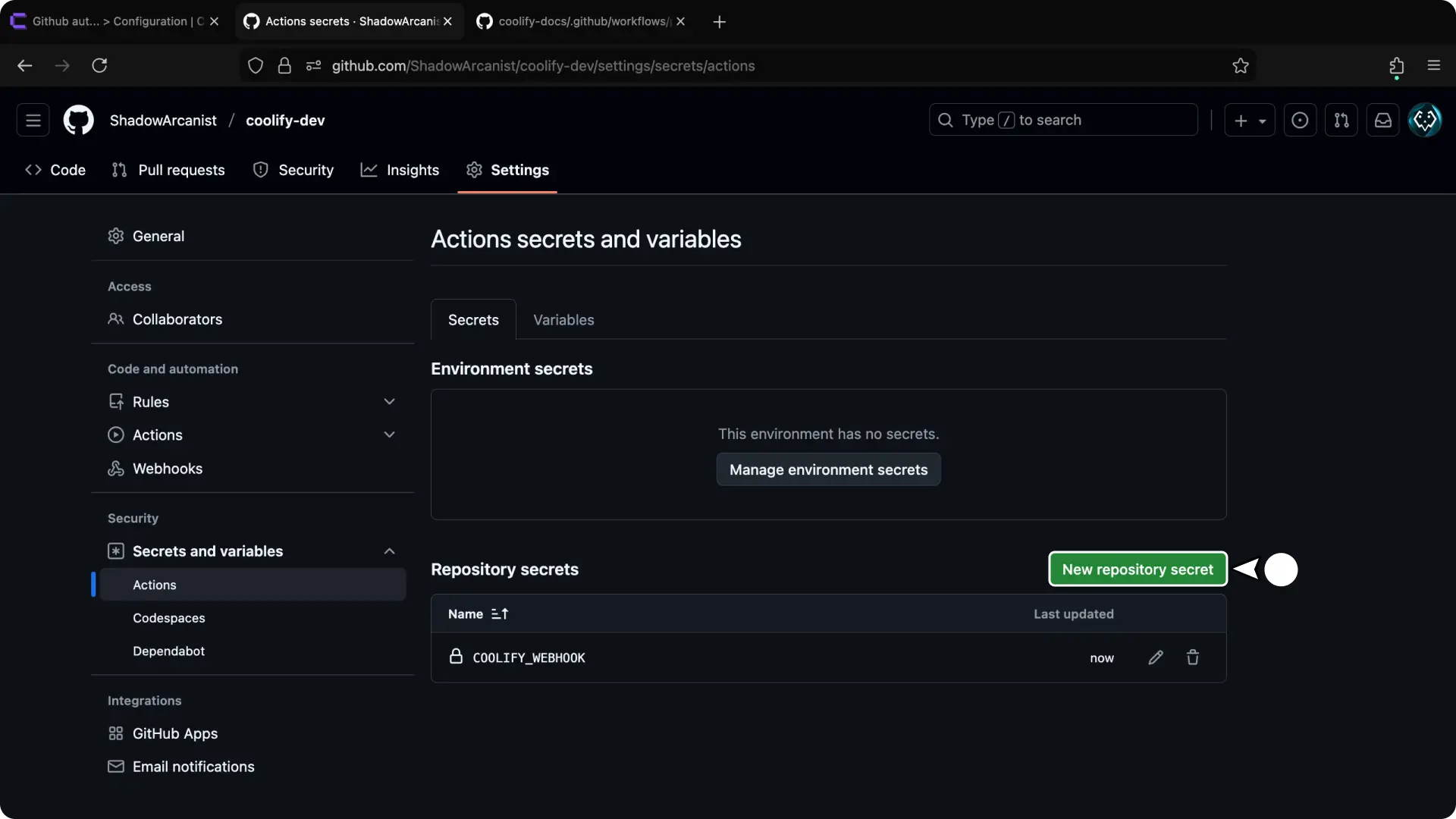
- Click "New repository secret".
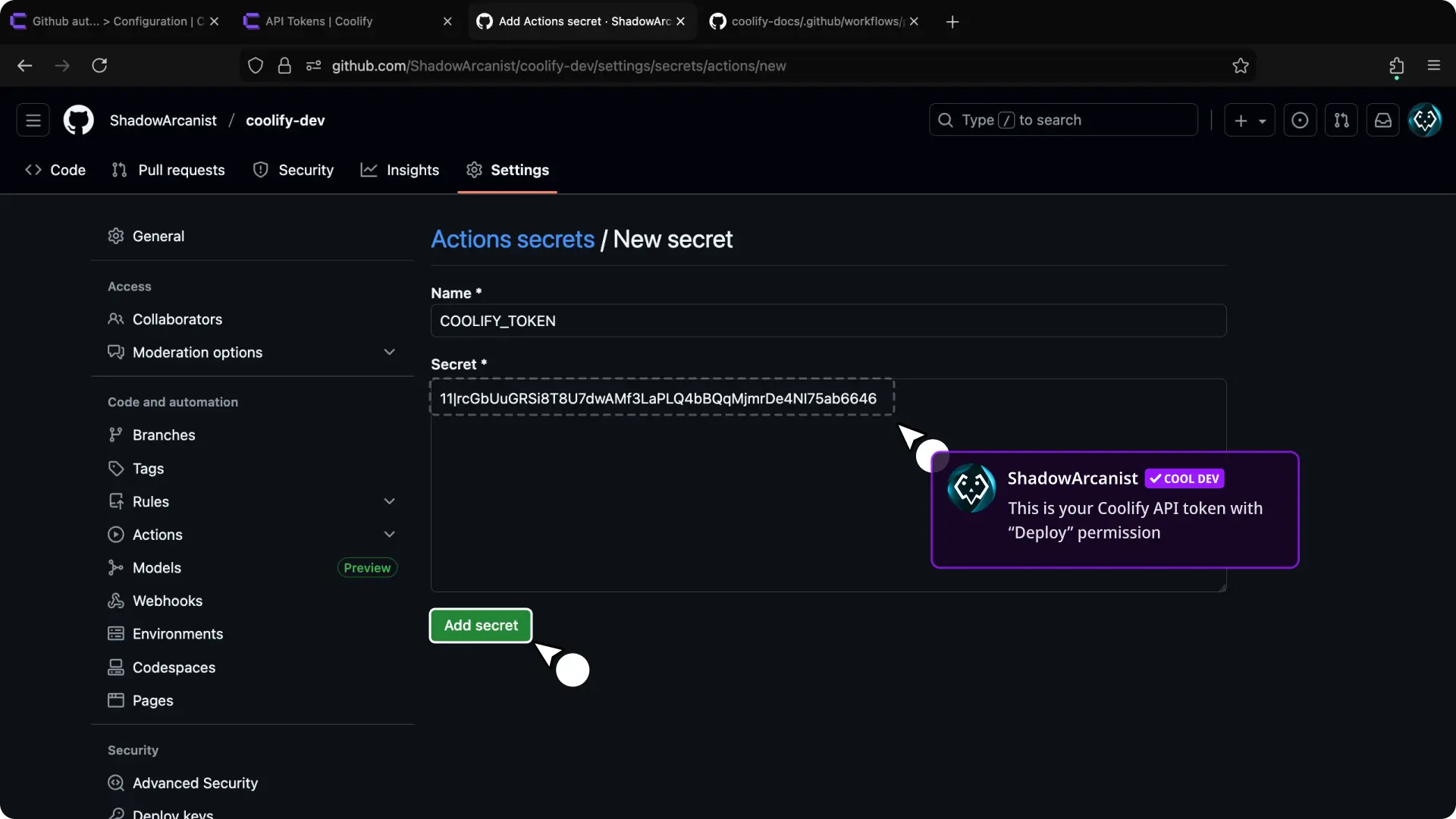
- Enter
COOLIFY_TOKENas the name. - Enter the Coolify API token as the secret (from step 3).
- Click "Add secret" button.
6. Set Up GitHub Workflow
- Create a new workflow file in the
.github/workflowsdirectory of your repository (name it with a.ymlor.yamlextension). - Use the following workflow content as a starting point:
name: Build and Deploy
on:
  push:
    branches: ["main"]  # Trigger on pushes to main branch
env:
  REGISTRY: ghcr.io
  IMAGE_NAME: "andrasbacsai/github-actions-with-coolify"

jobs:
  build-and-deploy:
    runs-on: ubuntu-latest
    permissions:
      contents: read
      packages: write
    steps:
      - uses: actions/checkout@v3
      - name: Login to registry
        uses: docker/login-action@v2
        with:
          registry: ${{ env.REGISTRY }}
          username: ${{ github.actor }}
          password: ${{ secrets.GITHUB_TOKEN }}
      - name: Build and push image
        uses: docker/build-push-action@v4
        with:
          context: .
          file: Dockerfile
          platforms: linux/amd64
          push: true
          tags: ${{ env.REGISTRY }}/${{ env.IMAGE_NAME }}:latest
      - name: Deploy to Coolify
        run: |
          curl --request GET '${{ secrets.COOLIFY_WEBHOOK }}' --header 'Authorization: Bearer ${{ secrets.COOLIFY_TOKEN }}'
This workflow builds the Docker image, pushes it to ghcr.io with the tag latest, and triggers a redeployment in Coolify via API.
IMPORTANT
The above workflow is just an example to show how the process works. Adjust it to fit your own CI/CD needs.
Make sure the Deploy to Coolify step comes after all checks and tests so it only runs when everything before it passes.
7. Authenticate with Container Registry
If pushing to a private registry, authenticate it on your server so it can pull the image.
Run one of these commands on your server's terminal (based on the registry):
- Docker Hub:
docker login - GitHub Container Registry (GHCR):
echo $GH_TOKEN | docker login ghcr.io -u $USERNAME --password-stdin
For other registries, refer to their documentation.
That's it!