
Environment Variables
You can define environment variables for your resources, and they will be available in your application.
Preview Deployments could have different environment variables, so you can test your application as a staging environment for example.
Normal View vs Developer View
Coolify provides two ways to manage environment variables: Normal view and Developer view. You can switch between them using the button at the top of the environment variables section.
Normal View
The default view displays each environment variable as an individual form card. Each card includes editable key and value fields, along with checkboxes for options like Build Variable, Multiline, and Literal.
This view is best when you need to configure individual variables with specific options, or when working with multiline values and locked secrets.
Developer View
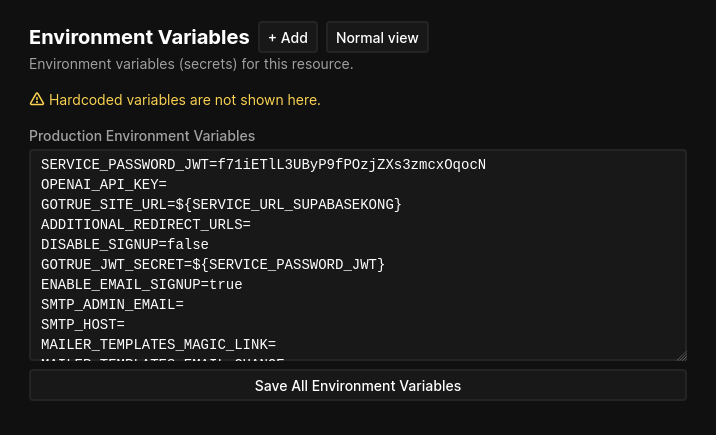
The Developer view provides a plain-text editor where all environment variables are displayed in .env file format (KEY=VALUE, one per line). This is useful for bulk editing or pasting variables from an existing .env file.
When saving, Coolify parses the text and creates, updates, or removes variables accordingly. The order of variables in the text editor is preserved.
Lines starting with # are treated as comments and ignored when saving.
Limitations
- Locked secrets are displayed as
KEY=(Locked Secret, delete and add again to change)and cannot be edited in Developer view. You must delete and re-add them. - Multiline variables are displayed as
KEY=(Multiline environment variable, edit in normal view)and must be edited in Normal view.
Build Time vs Runtime Variables
Every environment variable has two independent flags that control when it is available: Build Variable and Runtime Variable. Both are enabled by default, so new variables are available in both phases unless you change this.
| Configuration | Build phase | Running container |
|---|---|---|
| Build + Runtime (default) | Available | Available |
| Build only | Available | Not available |
| Runtime only | Not available | Available |
You can toggle these checkboxes independently in the Normal view.
Build Variables
Build variables are injected during the image build process. For Dockerfile deployments, they are added as ARG instructions. For Docker Compose and Nixpacks/Buildpack deployments, they are passed via --env-file.
Build-time variables are stored in a separate file (/artifacts/build-time.env) outside the Docker build context, so they are not included in the final image.
Runtime Variables
Runtime variables are available inside the running container. After the build completes, Coolify writes a .env file containing all runtime-enabled variables, which is loaded by Docker Compose via the env_file directive at container start.
If you only need a variable at runtime (e.g., an API key your application reads on startup), disable Build Variable to keep it out of the build phase entirely.
Docker Build Secrets
By default, build variables are passed as --build-arg values. These values get recorded in the image metadata — anyone with access to the image can reveal them. For sensitive values like private registry tokens or API keys, you can enable Use Docker Build Secrets in your application's environment variable settings. This uses Docker BuildKit (requires Docker 18.09+) to temporarily mount secrets into build steps instead of embedding them in image layers, so they leave no trace in the final image.
When enabled, Coolify automatically rewrites your Dockerfile's RUN instructions to use --mount=type=secret — you do not need to modify your Dockerfile manually. For Docker Compose builds, Coolify adds a native secrets: section to the compose file instead.
When enabled, Coolify:
- Passes build variables via
--secret id=KEY,env=KEYinstead of--build-arg. - Automatically adds a
# syntax=docker/dockerfile:1directive to your Dockerfile if missing. - Injects
--mount=type=secretinto everyRUNinstruction, making secrets available as environment variables during that step. - Secrets are never embedded in image layers and are not visible in
docker history.
For Docker Compose builds, Coolify adds a native secrets: section to the compose file instead.
| Build Args (default) | Build Secrets | |
|---|---|---|
| Docker flag | --build-arg KEY=value | --secret id=KEY,env=KEY |
Visible in docker history | Yes | No |
| Stored in image layers | Yes | No |
| Requires BuildKit | No | Yes (Docker 18.09+) |
Build Cache
Coolify generates a COOLIFY_BUILD_SECRETS_HASH from all secret values. Docker build cache is preserved when your secrets haven't changed, and automatically invalidated when they have.
If BuildKit is not available on the build server, Coolify falls back to traditional --build-arg behavior even when this setting is enabled.
Multiline Variables
The Multiline checkbox in Normal view preserves line breaks and special characters in your variable's value. Enable this when your value spans multiple lines, such as:
- SSH private keys
- TLS/SSL certificates
- Multi-line configuration files or scripts
Multiline values are wrapped in single quotes during deployment, which prevents any shell interpretation. During Docker builds, multiline build variables are passed using ARG KEY without inline value assignment to avoid breaking Dockerfile syntax — the actual value is supplied separately via --build-arg.
Multiline variables can only be edited in Normal view. In Developer view, they appear as KEY=(Multiline environment variable, edit in normal view).
Literal Variables
The Literal checkbox in Normal view prevents variable interpolation. By default, Coolify expands references like $OTHER_VAR inside your value. Enabling Literal treats the entire value as plain text — dollar signs and other shell-special characters are preserved as-is.
Use this when your value contains $ characters that should not be interpreted as variable references:
- Passwords containing
$(e.g.,P@ss$word123) - Regex patterns (e.g.,
^user\d+$) - Templating syntax or literal shell expressions
The Literal checkbox is hidden when Multiline is already enabled, since multiline values are always treated literally.
Shared Variables
You could have 3 types of shared variables:
- Team Based
- Project Based
- Environment Based (production, staging, etc.)
You can set shared variables on their respective pages.
Then you can use these variables anywhere. For example: You defined NODE_ENV to production.
Team Based
You can set them on the Team page and use it with {{team.NODE_ENV}}. Do not replace "team" with your actual team name.
Project Based
You can set them on the Projects page, under the gear icon and use it with {{project.NODE_ENV}}. Do not replace "project" with your actual project name.
Environment Based
You can set them on the Environments page (select a Project), under the gear icon and use it with {{environment.NODE_ENV}} Do not replace "environment" with your actual environment name.
Using Environment and Shared Variables in Docker Compose
Within Coolify you can configure these easily following the details found in the Knowledge Base for Docker Compose.
Predefined Variables
Coolify predefines some variables for you, so you can use them in your application or service. All you need to do is to add an environment variable like this to your application or service.
# For example, you can use this variable in your application
MY_VARIABLE=$SOURCE_COMMIT
# You will have the commit hash of the source code in your application as an environment variable in MY_VARIABLE
Application Variables
COOLIFY_FQDN
Fully qualified domain name(s) of the application.
COOLIFY_URL
URL(s) of the application.
COOLIFY_BRANCH
Branch name of the source code.
COOLIFY_RESOURCE_UUID
Unique resource identifier generated by Coolify.
COOLIFY_CONTAINER_NAME
Name of the container generated by Coolify.
SOURCE_COMMIT
Commit hash of the source code.
Build Cache
By default, SOURCE_COMMIT is not included in Docker builds to preserve cache. Enable "Include Source Commit in Build" in your application's General settings if your build process needs this value.
PORT
If not set: it is set to the Port Exposes's first port.
HOST
If not set: it is set to 0.0.0.0
Service Stack Variables
SERVICE_NAME_<ID>
The service name of a given service in the stack. For example, if you have a service named web, you can access it with SERVICE_NAME_WEB. Useful for preview deployments where service names will vary.
Magic Environment Variables
For Docker Compose / Service Stack deployments, Coolify can auto-generate dynamic values using the SERVICE_<TYPE>_<IDENTIFIER> syntax. These let you generate URLs, FQDNs, passwords, and random strings that stay consistent across all services in a stack.
| Type | What it generates | Example output |
|---|---|---|
SERVICE_URL_<ID> | A URL based on your wildcard domain | http://app-vgsco4o.example.com |
SERVICE_URL_<ID>_3000 | URL with proxy routing to a specific port | http://app-vgsco4o.example.com:3000 |
SERVICE_URL_<ID>=/api | URL with a path appended | http://app-vgsco4o.example.com/api |
SERVICE_URL_<ID>_3000=/api | URL with both port routing and path | http://app-vgsco4o.example.com:3000/api |
SERVICE_FQDN_<ID> | The FQDN portion of the generated URL | app-vgsco4o.example.com |
SERVICE_FQDN_<ID>_3000 | FQDN with proxy routing to a specific port | app-vgsco4o.example.com:3000 |
SERVICE_FQDN_<ID>=/api | FQDN with a path appended | app-vgsco4o.example.com/api |
SERVICE_USER_<ID> | Random string, 16 characters | a8Kd3fR2mNpQ1xYz |
SERVICE_PASSWORD_<ID> | Random password without symbols | G7hkL9mpQ2rT4vXw |
SERVICE_PASSWORD_64_<ID> | Random password without symbols, 64 characters | qG7hkL9mpQ2rT4vXw8BnP6sYd... |
SERVICE_PASSWORDWITHSYMBOLS_<ID> | Random password with symbols | G7!kL9#pQ2rT4vXw |
SERVICE_PASSWORDWITHSYMBOLS_64_<ID> | Random password with symbols, 64 characters | qG7!kL9#pQ2rT4vXw8BnP6sYd... |
SERVICE_BASE64_<ID> or SERVICE_BASE64_32_<ID> | Random string, not Base64-encoded, 32 characters | x9Yf2KqLm4NpR7TdWb8ZcA1eG3hJ5kM |
SERVICE_BASE64_64_<ID> | Random string, not Base64-encoded, 64 characters | x9Yf2KqLm4NpR7TdWb8ZcA1eG3hJ5kM... |
SERVICE_BASE64_128_<ID> | Random string, not Base64-encoded, 128 characters | x9Yf2KqLm4NpR7TdWb8ZcA1eG3hJ5kM... |
SERVICE_REALBASE64_<ID> or SERVICE_REALBASE64_32_<ID> | Base64-encoded random string, 32 characters | eDlZZjJLcUxtNE5wUjdUZA== |
SERVICE_REALBASE64_64_<ID> | Base64-encoded random string, 64 characters | cU83aGtMOW1wUTJyVDR2WHc4Qm4=... |
SERVICE_REALBASE64_128_<ID> | Base64-encoded random string, 128 characters | cU83aGtMOW1wUTJyVDR2WHc4Qm4=... |
SERVICE_HEX_32_<ID> | Hexadecimal random string, 32 characters | a6b9f34e43c112d79f9a3d5c7983344f |
SERVICE_HEX_64_<ID> | Hexadecimal random string, 64 characters | db8c8a1a3b9df5a9fb8fd3f87df62f4... |
SERVICE_HEX_128_<ID> | Hexadecimal random string, 128 characters | 7f8c98a98db56b0c6c8768b1db6d24... |
Generated values are reusable across services and persist between deployments. For full usage examples in a compose file, see Magic Environment Variables in Docker Compose.
Managing Destinations
Manage Coolify destinations including editing, deleting, resource assignment, and connecting service stacks to predefined Docker networks.
Persistent Storage
Configure persistent Docker volumes and bind mounts for Coolify resources to preserve data between deployments with proper path mapping and sharing options.