
Web terminal
The Coolify Web Terminal lets you open a shell for a connected server or running container from the dashboard.
Only team owners and administrators can use terminal features. Commands run with the permissions of the selected server user or container, so close the terminal when you finish.
Before you start
Make sure:
- the server is reachable and validated
- Terminal Access is enabled for the server
- you are a team owner or administrator
Open a terminal
Select a server or container
- Select Terminal in the Coolify sidebar.
- Under Start a terminal session, use Filter targets to find the target if needed.
- Select the server or running container. Coolify starts the session immediately.
Coolify creates a short-lived terminal session token on the server rather than sending SSH command details through the browser. Wait for the command prompt to appear. If the session cannot start, the terminal displays an error; review it and check server reachability and terminal access before retrying.
Confirm the terminal works
Run a read-only command first:
pwdFor a server, the output should show the current directory for the SSH user configured in Coolify. For a container, it shows the current directory inside that container.
You can now run the command needed for your task. Close the browser terminal when you finish.
Open a resource terminal
You can also open Terminal from an individual server, application, database, or service when that resource provides a terminal page.
The same server setting controls both the global Terminal page and these resource terminals.
Use console mode for a container
Some containers run a main process that reads commands from its standard input (stdin), for example a game server console. For these containers, the terminal has two modes:
| Mode | What it does |
|---|---|
| Shell | Starts a new shell in the container (docker exec). Use it to run commands such as ls or cat. |
| Console | Connects to the main process of the container (docker attach). The commands that you send go to that process. |
Console mode is not a framework console such as php artisan tinker or rails console. To use a framework console, start it in Shell mode.
When console mode is available
Coolify shows the mode selector only when the container keeps stdin open. Coolify gets this value from the container configuration (OpenStdin) when you open the terminal. Server terminals always use a shell.
To keep stdin open:
- For a Docker Compose resource, set
stdin_open: trueon the service. - For a single-container application, add
-ior--interactiveto the custom Docker options.
When the container keeps stdin open, the terminal starts in Console mode. If the image has no shell, the Shell option is not available.
Send commands in console mode
- Open the terminal for the container.
- To change the mode, select the mode selector next to the theme selector, then select Shell or Console. Coolify connects again in the new mode.
- In Console mode, type a command in the command box below the output. The output area is read-only.
- Push Enter or select Send.
When the session opens, Coolify shows the last 200 log lines of the container, then the live output.
Keyboard shortcuts in the command box:
| Key | Action |
|---|---|
| Enter | Send the command. |
| Up / Down | Show the previous or next command. |
| Esc | Cancel a pasted text, or clear the input. |
| Ctrl+L | Clear the visible output. Coolify does not send a command to the process. |
If you paste more than one line, Coolify does not send the lines immediately. Push Enter to send them or Esc to cancel. Coolify does not send control characters.
The command history is kept only for the current connection. Coolify does not save it in the browser.
Console mode connects to the process that keeps the container running. A command such as stop can stop that process and the container.
When you close the terminal or change the mode, Coolify disconnects from the process and does not stop it. Coolify also does not send signals such as Ctrl+C to the process.
Console mode uses the same permissions as the shell: you must be a team owner or administrator, and Terminal Access must be enabled for the server.
Change terminal access
Use this setting when nobody should be able to open dashboard terminals for a server or its containers.
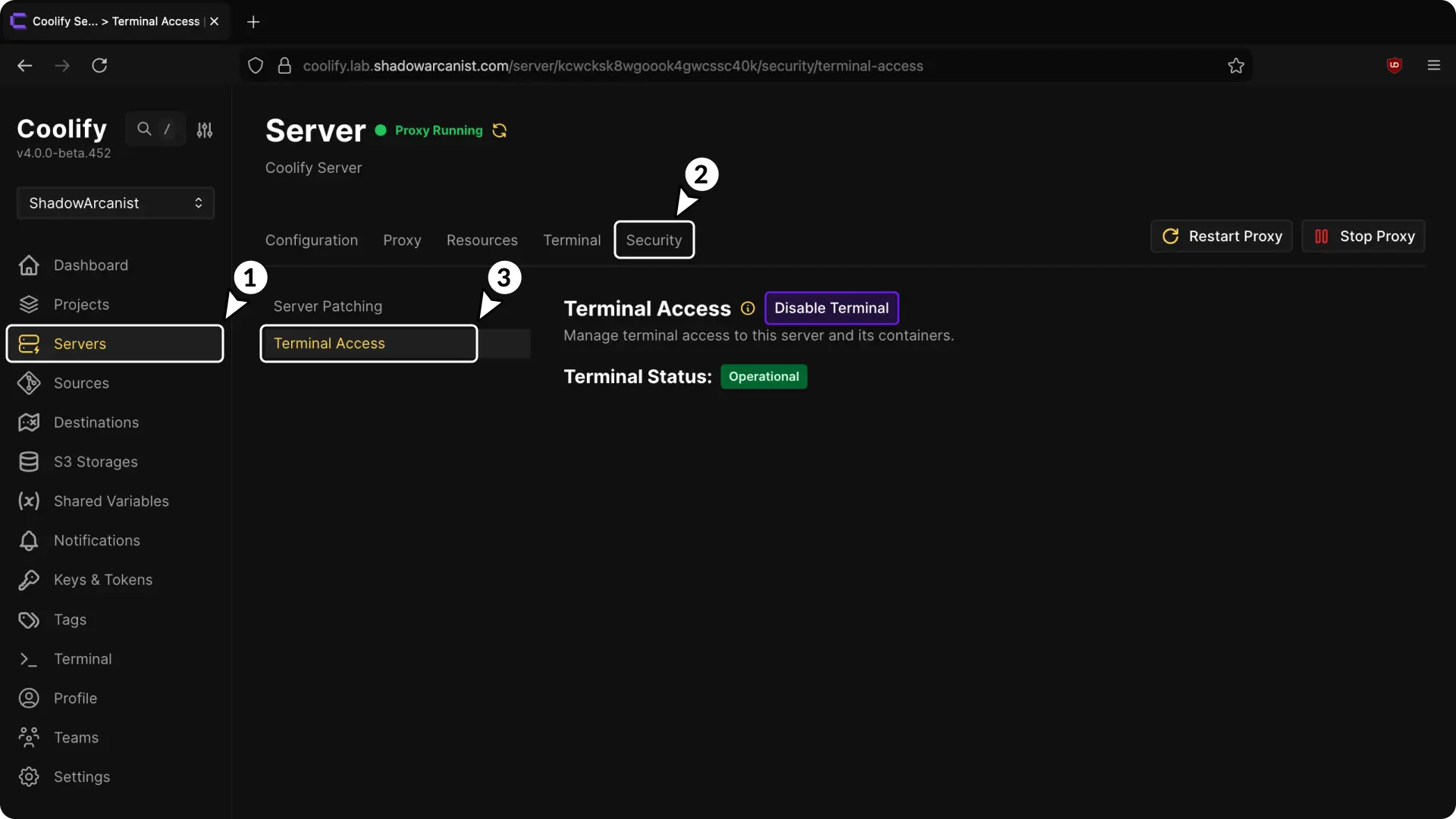
Disable terminal access
-
Open Servers.
-
Select the server.
-
Select Security.
-
Open Terminal Access.
-
Select Disable terminal.
-
Enter the server name and your Coolify account password in the confirmation window.
-
Complete the confirmation.
The change takes effect immediately. The server and its containers disappear from dashboard terminal selectors, including for owners and administrators.
Disabling this setting does not block normal SSH connections made outside Coolify.
Enable terminal access again
- Return to Servers > your server > Security > Terminal Access.
- Select Enable terminal.
- Enter the server name and your Coolify account password.
- Complete the confirmation.
- Return to Terminal and confirm the server appears in the target list.
If the terminal does not connect
- Confirm the server is reachable from its General page.
- Confirm Terminal Access is enabled.
- Confirm the container is running if you selected a container.
- If you open a self-hosted Coolify dashboard directly on port
8000, confirm port6002is allowed by the firewall. - Try the server terminal before the container terminal to confirm the SSH connection works.