
Manual Git webhooks
A manual Git webhook lets GitHub, GitLab, Bitbucket, or Gitea notify Coolify when a repository changes. Use one for an application created from a public repository URL or Private Repository (with deploy key).
Applications connected through an official Git App receive provider events through that integration and do not need a manual Git webhook.
Deploy webhook URL starts a deployment when an external workflow calls Coolify with an API token. It is not a repository webhook. Follow Automatic deployments and choose External workflow when CI should call Coolify directly.
Choose the repository provider
Each provider uses its own URL and secret from Webhooks > Manual Git Webhooks. Configure only the provider that hosts the repository. New or changed secrets must contain at least 16 characters. Use the generator beside the secret field to create a random value, then save the same value at the Git provider.
For production deployments, select the provider's push event and choose Deploy on push (webhooks) under Advanced > Deployment > Auto deploy. For preview deployments, also select the pull-request or merge-request events shown below.
Enable automatic branch deployments
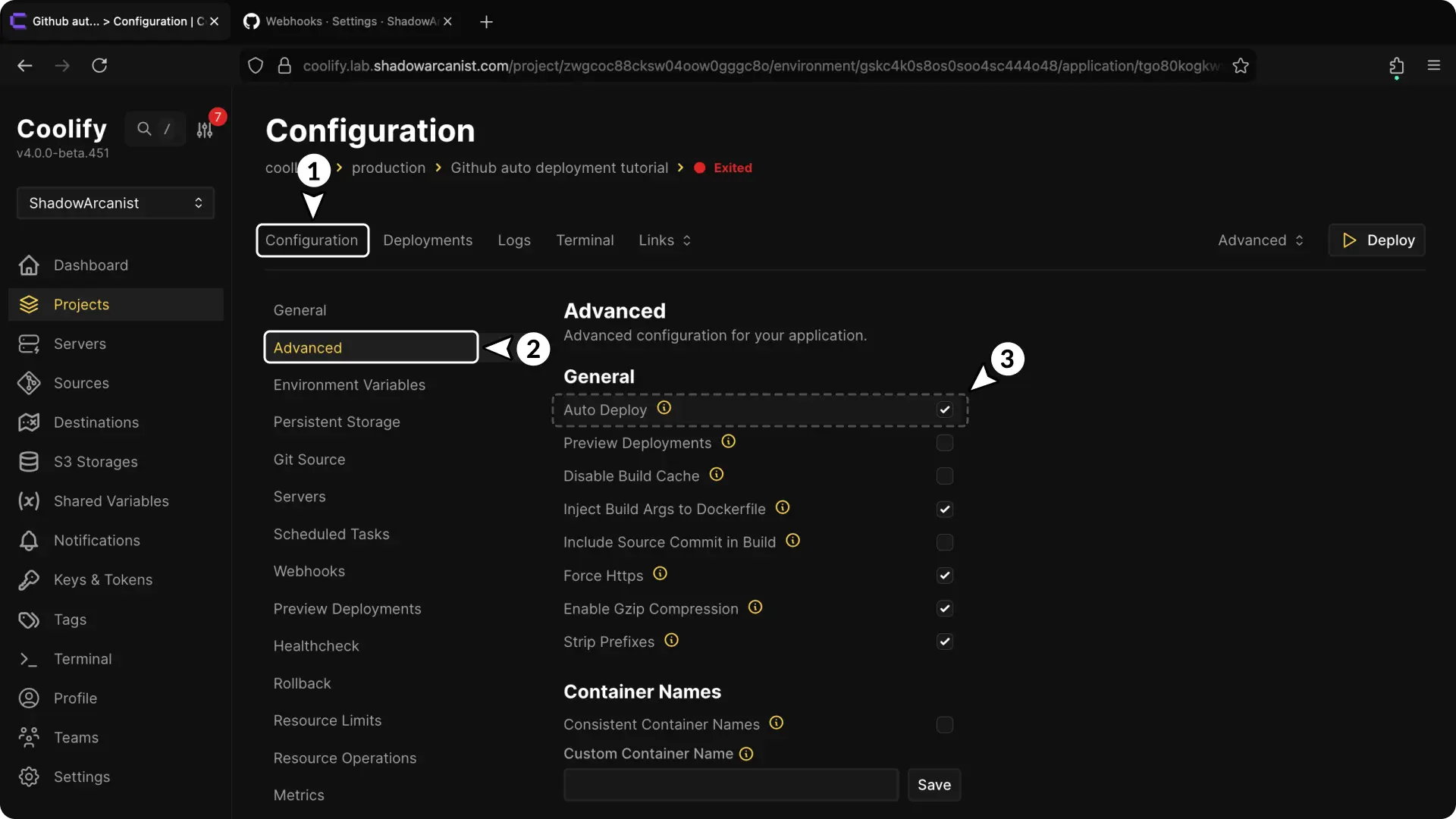
Open the application, select Advanced > Deployment, then choose Deploy on push (webhooks) in Auto deploy if pushes to the configured branch should deploy automatically.
Copy the GitHub webhook details
Open Webhooks. Enter a long random value in Webhook secret in the GitHub section, select Save changes, then copy the GitHub URL under Manual Git webhooks.
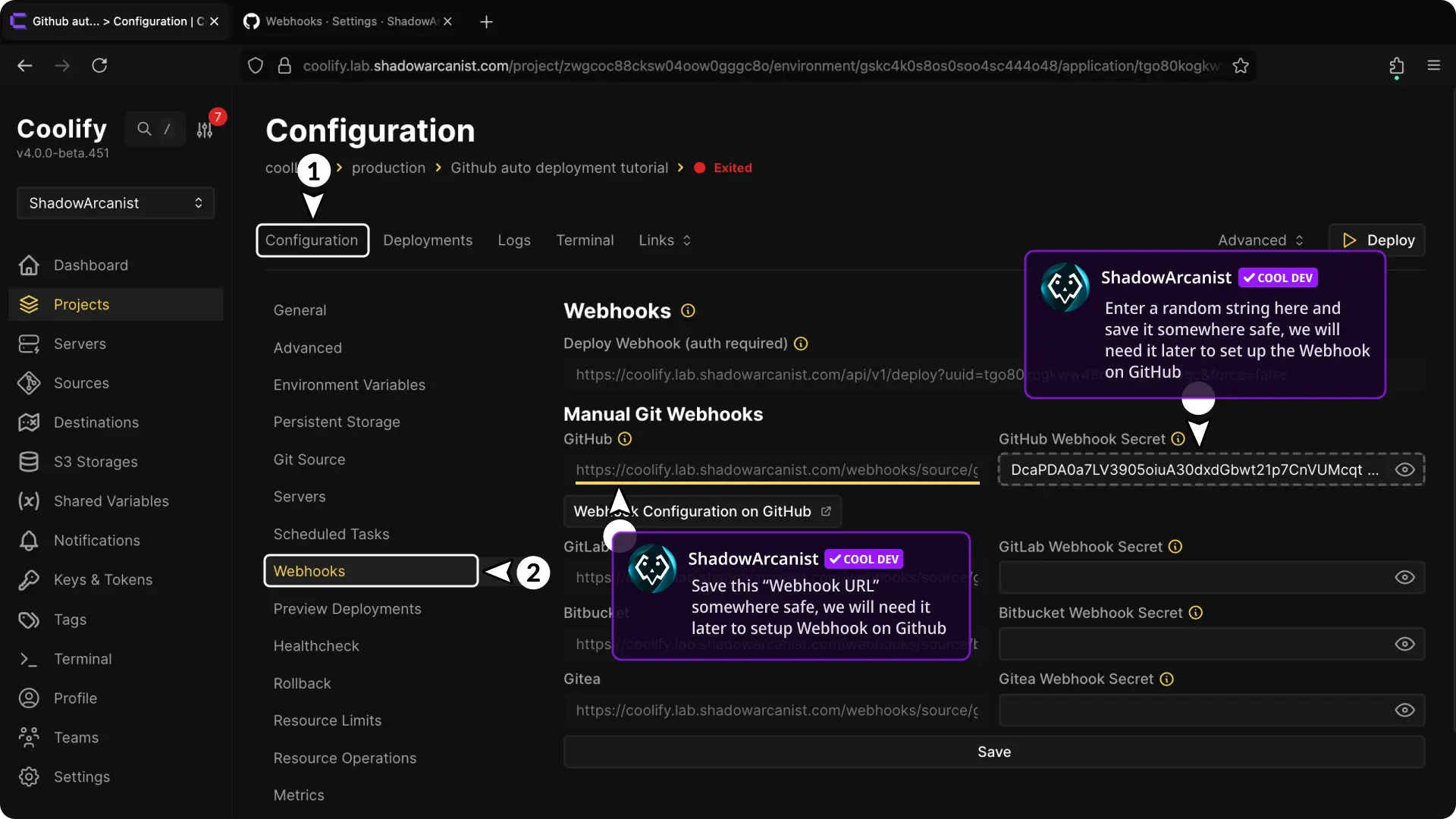
Keep the secret private. GitHub must use the same value when it signs webhook deliveries.
Add the webhook on GitHub
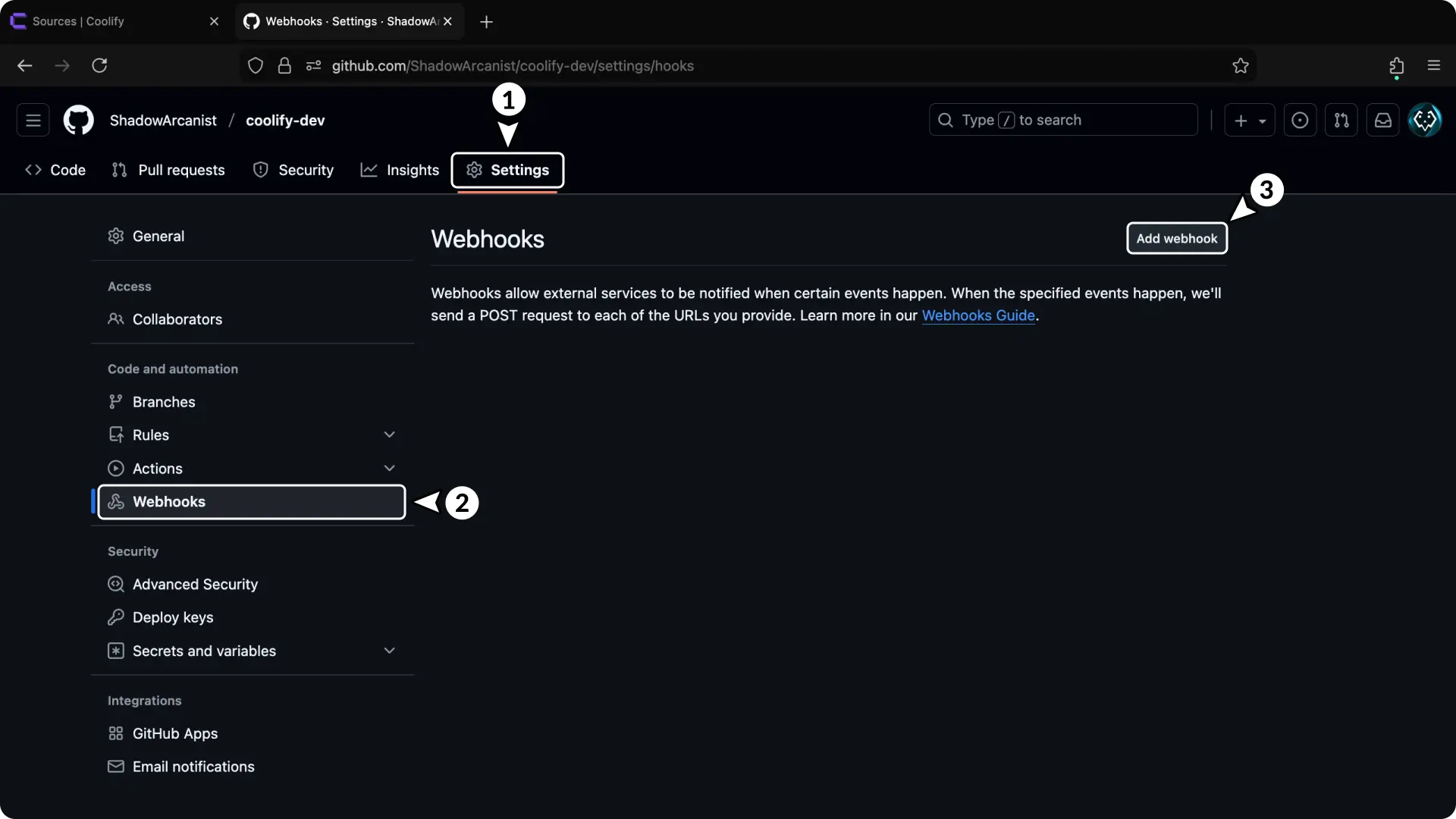
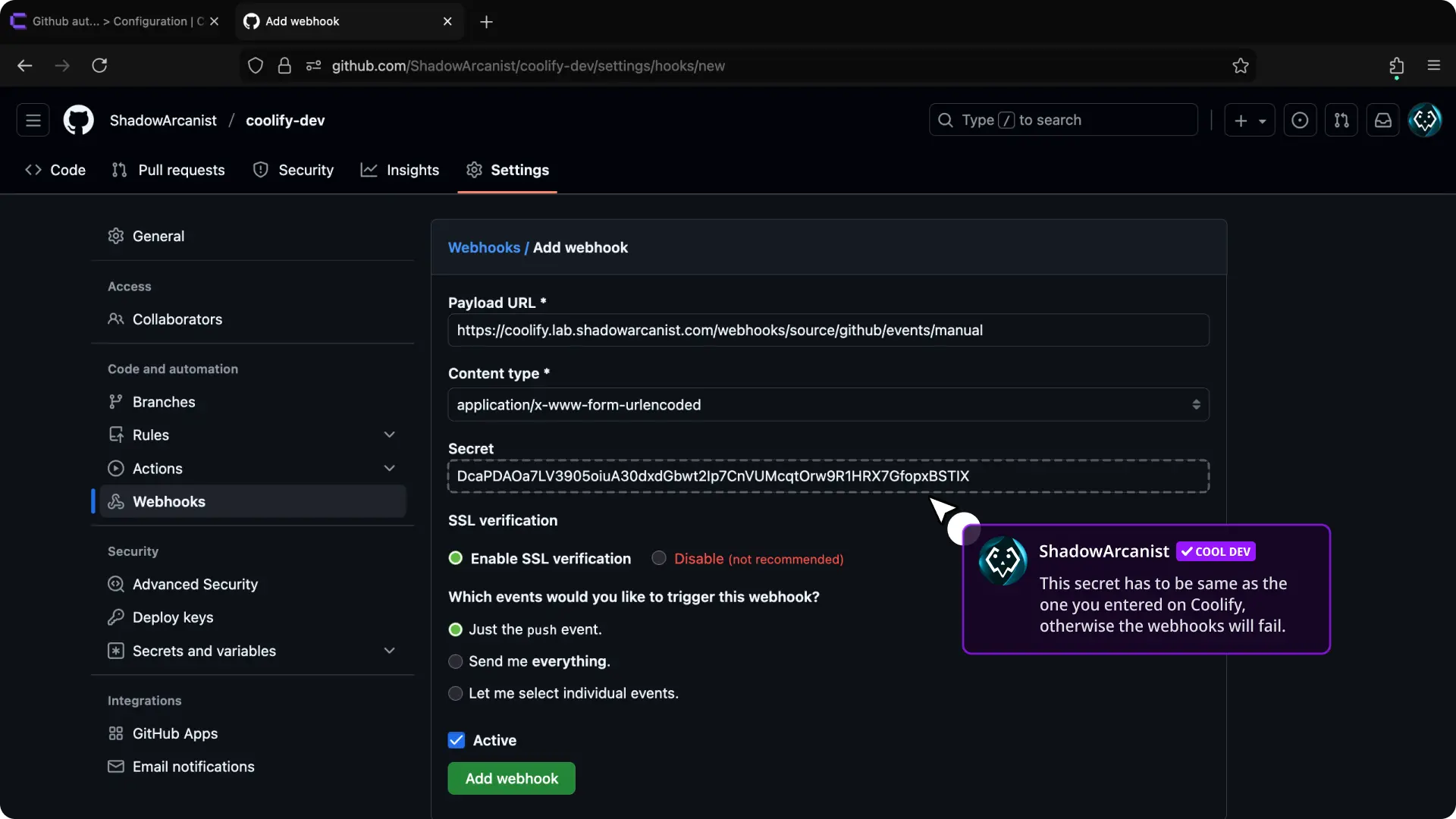
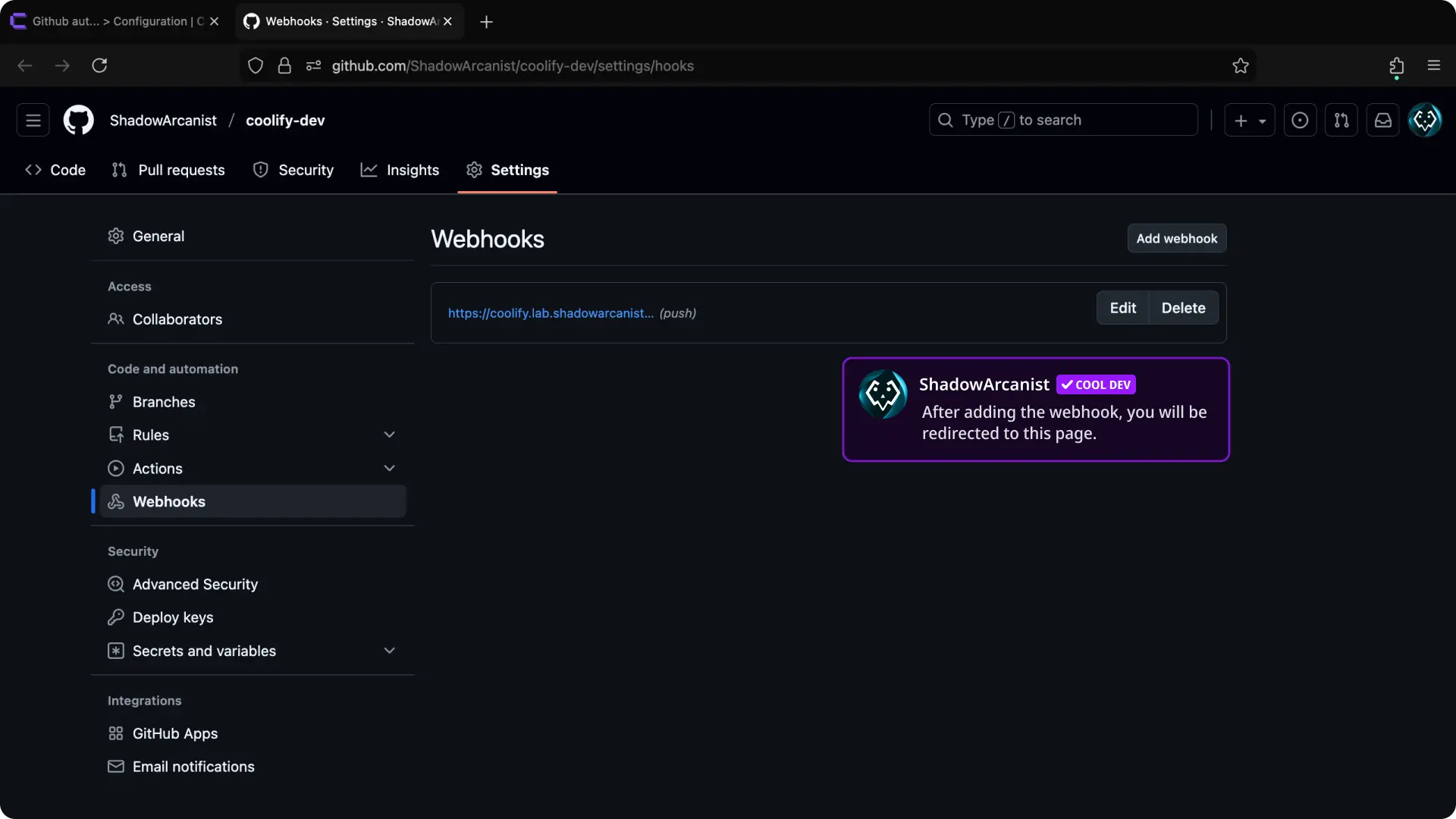
Open the GitHub repository, select Settings > Webhooks > Add webhook, then enter:
- Payload URL: the GitHub URL copied from Coolify
- Content type:
application/jsonorapplication/x-www-form-urlencoded - Secret: the value saved in Coolify
Keep Enable SSL verification selected.
Select the events
Choose Just the push event for automatic deployments from the configured branch.
If the application also uses previews, choose Let me select individual events, then select Pushes and Pull requests. Keep Active selected and select Add webhook.
Verify the webhook
Push a commit to the application's configured branch. Open Deployment Logs in Coolify and confirm a webhook deployment appears.
GitHub also shows the webhook and its recent deliveries under Settings > Webhooks.
Troubleshoot a missing deployment
Open the webhook's recent deliveries in the repository provider, then check:
- the provider sent an event supported by Coolify
- the delivery received a successful HTTP response
- the provider secret exactly matches the saved Coolify secret
- the Coolify webhook URL is reachable from the internet
- Auto deploy under Advanced > Deployment is set to Deploy on push (webhooks) for a push event
- the pushed branch matches the branch configured for the application
A pull-request or merge-request event creates a preview only when Preview Deployments is enabled.
Repeated distinct signature failures are throttled per client address, repository, and branch. Correctly signed deliveries remain accepted. Webhook responses do not reveal matching applications; verify deployment history instead.