
SSH keys
Coolify uses SSH private keys to connect to servers without passwords and to access private Git repositories through deploy keys. Keys belong to the active Coolify team and can be reused by resources in that team.
Coolify must use SSH keys without an interactive prompt. Do not add a passphrase or a second-factor prompt to a key used by Coolify.
How Coolify uses a key pair
An SSH key pair has two parts:
- Coolify stores and uses the private key when it starts an SSH connection.
- You add the matching public key to the server account's
~/.ssh/authorized_keysfile or to the Git provider as a deploy key.
The public key does not grant access without its matching private key. Never copy the private key to a managed server or Git repository.
Create an SSH key
Open Keys & Tokens in the main sidebar, select Private Keys, then open New private key.
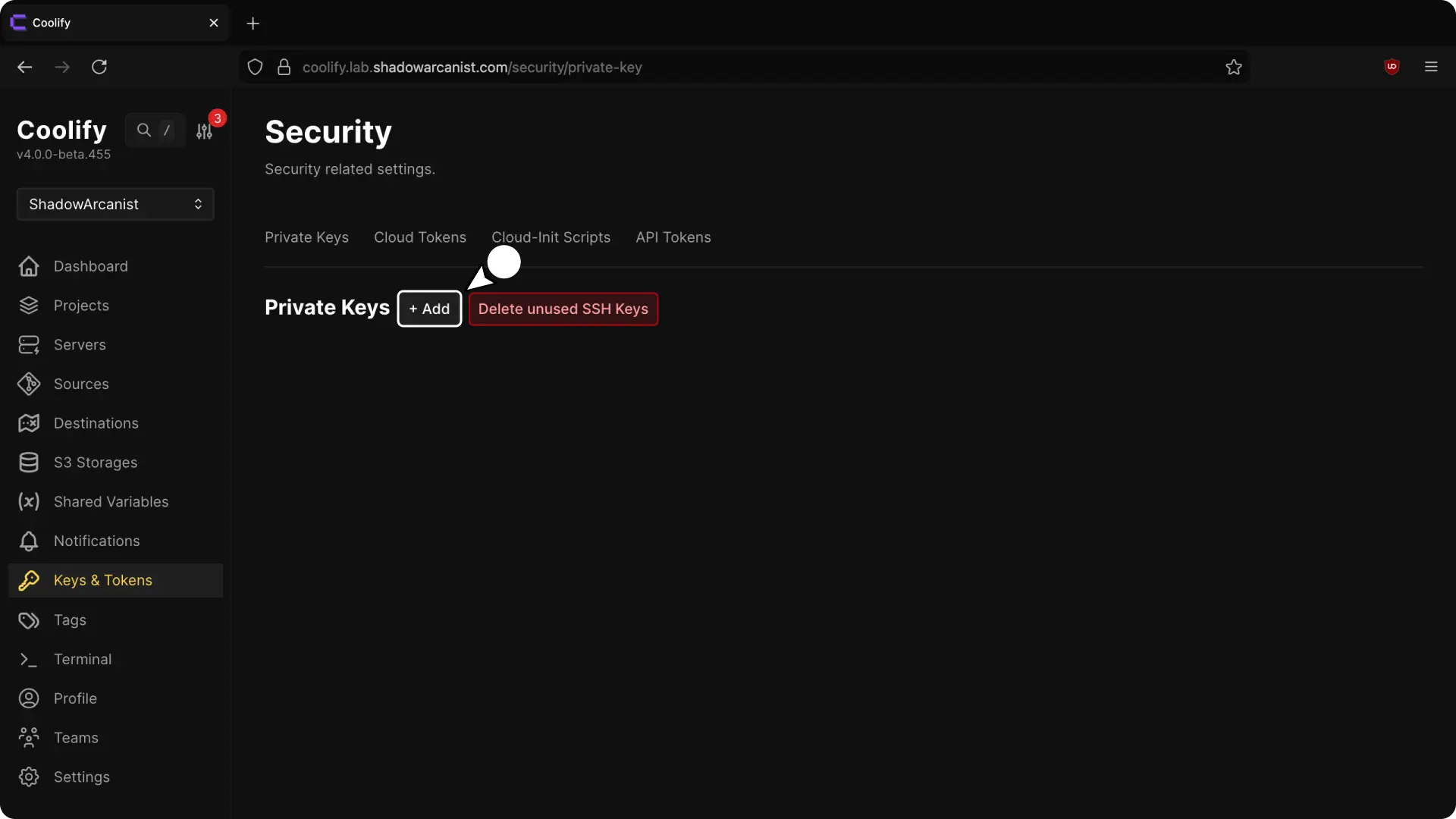
Select Generate ED25519 for the default choice. Use Generate RSA only when the target system does not accept ED25519 keys.
Coolify generates and saves the key immediately. Select its Edit icon to review the public key or change the name to identify its purpose, such as production-servers. Select Save changes after editing.
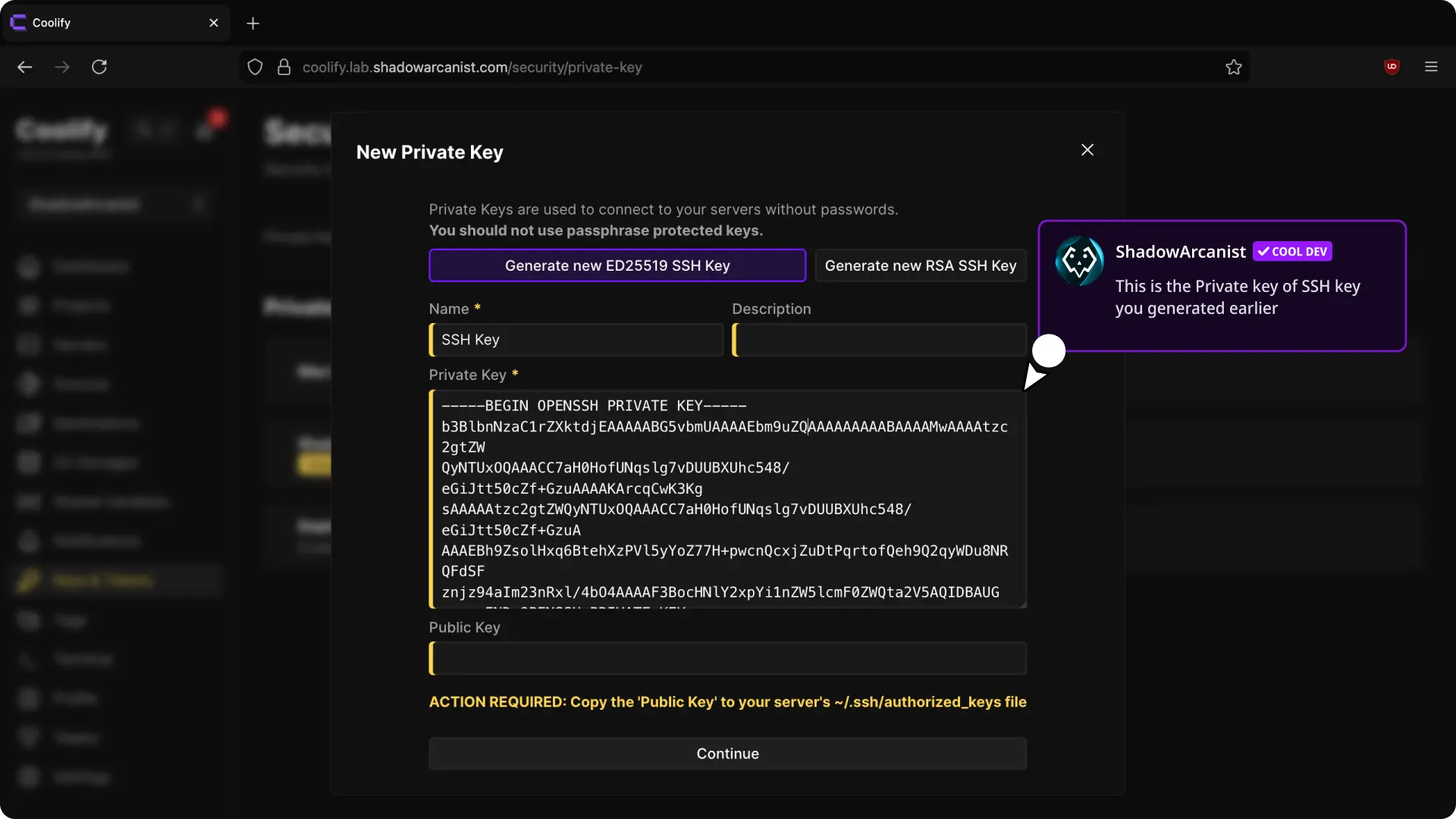
Coolify rejects invalid private keys and duplicate keys in the active team.
Authorize the public key on a server
Add the public key to the account Coolify will use for SSH. The following commands use root; replace it with the configured non-root account when needed.
Copy the public key from Coolify
Open Keys & Tokens > Private Keys, select its Edit icon, and copy Public key.
Connect to the server
From a trusted terminal, connect with an existing administrative method:
ssh root@<server-ip>If SSH uses another port, add -p <ssh-port>.
Add the key to the SSH account
On the server, run:
mkdir -p ~/.ssh
chmod 700 ~/.ssh
nano ~/.ssh/authorized_keys
Paste the complete public key on its own line. Save the file, then run:
chmod 600 ~/.ssh/authorized_keysDo not remove the key used by your current SSH session until the new Coolify connection has been verified.
For server requirements and firewall rules, follow OpenSSH.
Select and verify a server key
For a new server, select the key in the Private Key field while following Add Server.
For a connected server:
- Open Servers and select the server.
- Open Private Key in the server settings.
- Find the authorized key and select Use this key.
- Select Check connection.
The change is verified when Coolify reports that the server is reachable. If the check fails, restore the previously working key selection and confirm that the new public key is in the configured SSH user's ~/.ssh/authorized_keys file.
Use a key for a private Git repository
When creating an application from a private repository through a deploy key, select or create a private key in Coolify and add its public key to the repository's deploy-key settings.
Repository access and server access are separate. Adding a public key to a Git provider does not authorize that key on a server, and adding it to ~/.ssh/authorized_keys does not grant repository access.
Use a dedicated key when you want to rotate or revoke repository access without affecting server connections.
Rotate an SSH key
Create a new key instead of replacing a shared private key in place. This keeps the current connection available during the transition.
- Create the replacement key under Keys & Tokens > Private Keys.
- Add its public key to every target server account or Git repository that needs it.
- For each connected server, select the replacement under Server > Private Key and run Check connection.
- Update applications or Git integrations that use the previous key and verify repository access with a deployment.
- Remove the previous public key from each server or provider only after every dependent resource uses the replacement.
- Delete the previous key from Coolify after it is marked unused.
If several resources share one key, rotate them one at a time. Replacing the private key value on the existing key changes the credential for every linked server and Git integration at once.
Delete unused keys
The Private Keys list marks a key Unused when no server, application, GitHub App, or GitLab App references it.
- Open an unused key and select Delete to remove it.
- Select Delete unused keys on the list page to remove all keys currently marked unused for the active team.
Coolify prevents its safe-delete operation from removing a key that is still referenced. Remove or replace every dependency before deleting the key.
Security and storage
Only team administrators and owners can create, change, or delete private keys. Give each key a purpose-specific name and avoid sharing one key across unrelated environments.
Coolify encrypts the private-key value stored in its database. On a self-hosted instance, Coolify also writes the key to its SSH key storage with restrictive file permissions so the SSH client can use it. Protect the Coolify database, /data/coolify/source/.env, /data/coolify/ssh/keys/, and instance backups as privileged recovery material.
For a self-hosted instance migration, follow Restore Coolify so the database, encryption key, and SSH key files remain consistent.