
Back up Coolify
An instance backup saves Coolify's own data, including your projects, resources, settings, and deployment history. It does not back up data stored inside your applications, databases, or volumes.
The Coolify team manages Coolify Cloud instance backups. You are still responsible for backing up the applications and databases deployed to your connected servers.
For a self-hosted instance, open Settings in the left sidebar, then select Backup.
If Coolify says instance backups are disabled, validate the server that runs Coolify:
- Select Open server settings.
- On the server page, select Validate connection.
- After validation succeeds, open Settings > Backup again.
The first time you open Backup, select Configure backup. Coolify then creates the backup configuration and turns on a daily backup schedule.
Before you back up
- Choose where you will keep a copy of the backup, such as another server or your computer. Do not keep the only copy on the Coolify server.
- Save the instance
APP_KEYas described below. Coolify uses this key to encrypt secrets stored in its database.
Choose a backup path
Use the dashboard while it is available. Use the terminal when the dashboard is unavailable or you need a backup that does not depend on the configured schedule.
Create a backup from the dashboard
Queue the backup
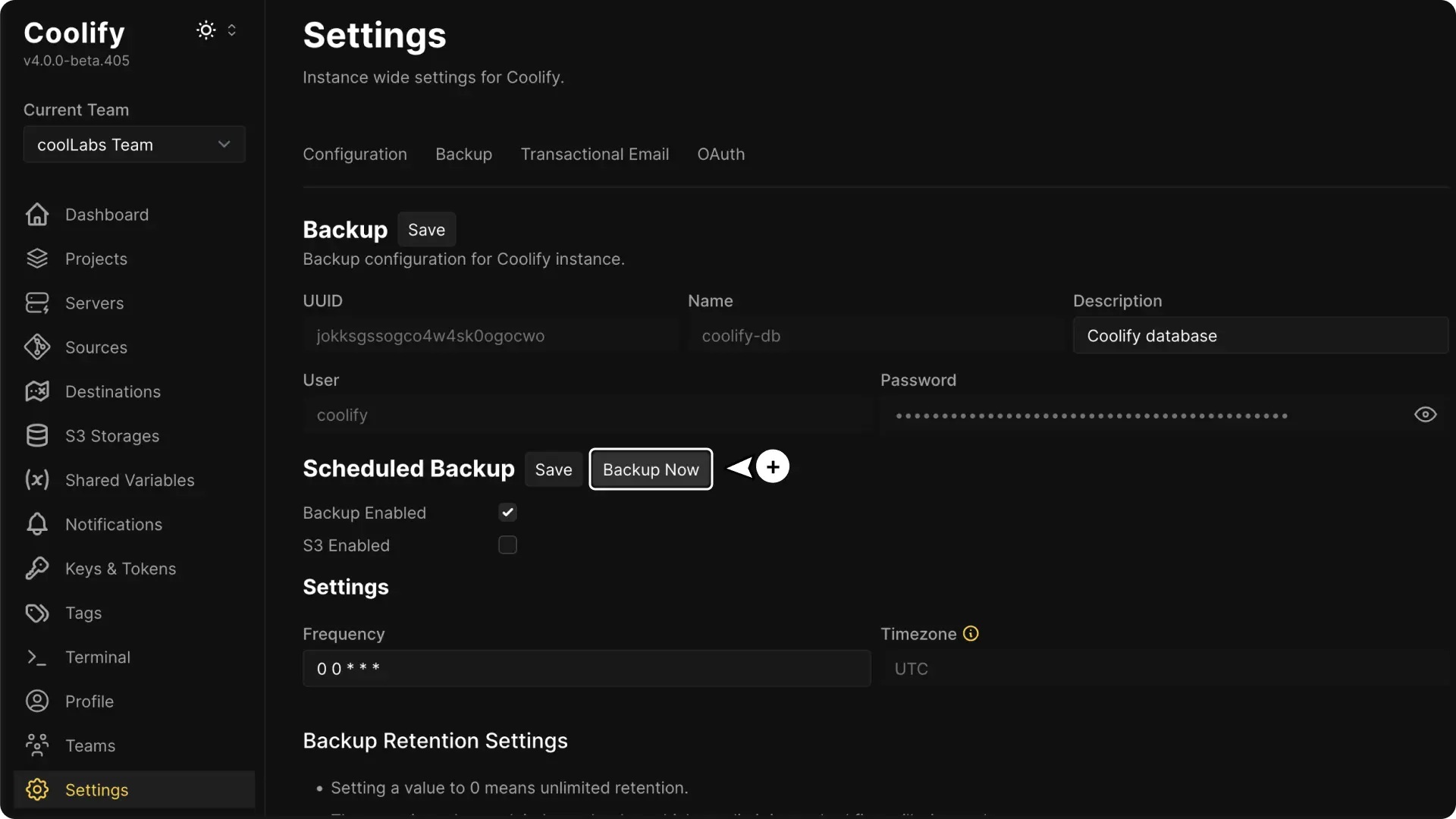
Under Backup schedule, select Back up now.
Confirm the result
After you select Back up now, a new entry appears under Executions. Its status changes from In Progress to Success when the backup is ready. If it changes to Failed, read the message shown in the entry.
Select Download while Local Storage is available to save a copy to your computer.
Back up before Coolify updates
After configuring the instance backup, find Backup before update on Settings > Backup. Database backup is enabled by default. Coolify runs this backup before manual updates started from the dashboard and before automatic updates, even outside the normal backup schedule.
The update waits for the backup result. A failed database backup prevents the update from starting. Correct the failure in Executions, then retry the update. This setting requires an existing instance backup configuration and does not cover a direct invocation of upgrade.sh. See Update Coolify.
Save the instance encryption key
Coolify encrypts saved credentials and private keys before storing them in its database. The APP_KEY in /data/coolify/source/.env is the key used for that encryption. A database backup does not include this file.
Save the APP_KEY before you need to restore the instance. Treat it like a password and do not publish or share it.
On the server that hosts Coolify, display the key:
grep '^APP_KEY=' /data/coolify/source/.envCopy the complete APP_KEY=... line into a password manager or another secure place outside the Coolify server. S3 instance backups include only the database backup file, so you must save this key separately.
Configure recurring backups
The default Frequency is 0 0 * * *, which creates one backup each day at midnight in the instance timezone.
Set the schedule
Select Enable backup if the schedule is disabled. Select Disable backup to pause scheduled runs. Enter a valid cron expression in Frequency, or use every_minute, hourly, daily, weekly, monthly, or yearly.
Timezone is read-only and uses the instance timezone.
Set Timeout to the maximum backup runtime in seconds, then select Save changes. The accepted range is 60 to 36000; the default is 3600 seconds.
Configure local retention
Under Retention > Local backups, set any combination of these limits:
- Backups to keep accepts
0or a positive integer. - Days to keep accepts
0or a positive integer. - Maximum storage (GB) accepts
0or a positive number, including decimals.
A value of 0 makes that limit unlimited. The limits work independently, and Coolify removes the oldest successful backups when any configured limit is reached.
Add an S3 copy
Under S3 storage, choose one or more validated targets in S3 storages, select Enable S3, then select Save changes. Each backup is uploaded to every selected destination. If no validated target exists, add and validate a storage target first.
When S3 is enabled, Retention > S3 backups provides the same three independent limits, evaluated separately for each S3 destination.
Set Local copy to Delete after S3 upload when you want to retain only the remote copies. Keep Keep local backup to retain the local file as well. Coolify deletes the local file only after every selected destination has a successful copy. If any upload fails, Coolify keeps the local file and marks the execution S3 warning.
Select Download to retrieve a retained local file or an available S3 copy. Remote downloads use links that expire after 15 minutes; request a new download if the link expires.
Verify and manage backups
Executions shows the status, database name, size, location, and storage availability for each backup. Each S3 destination has its own upload status and error message.
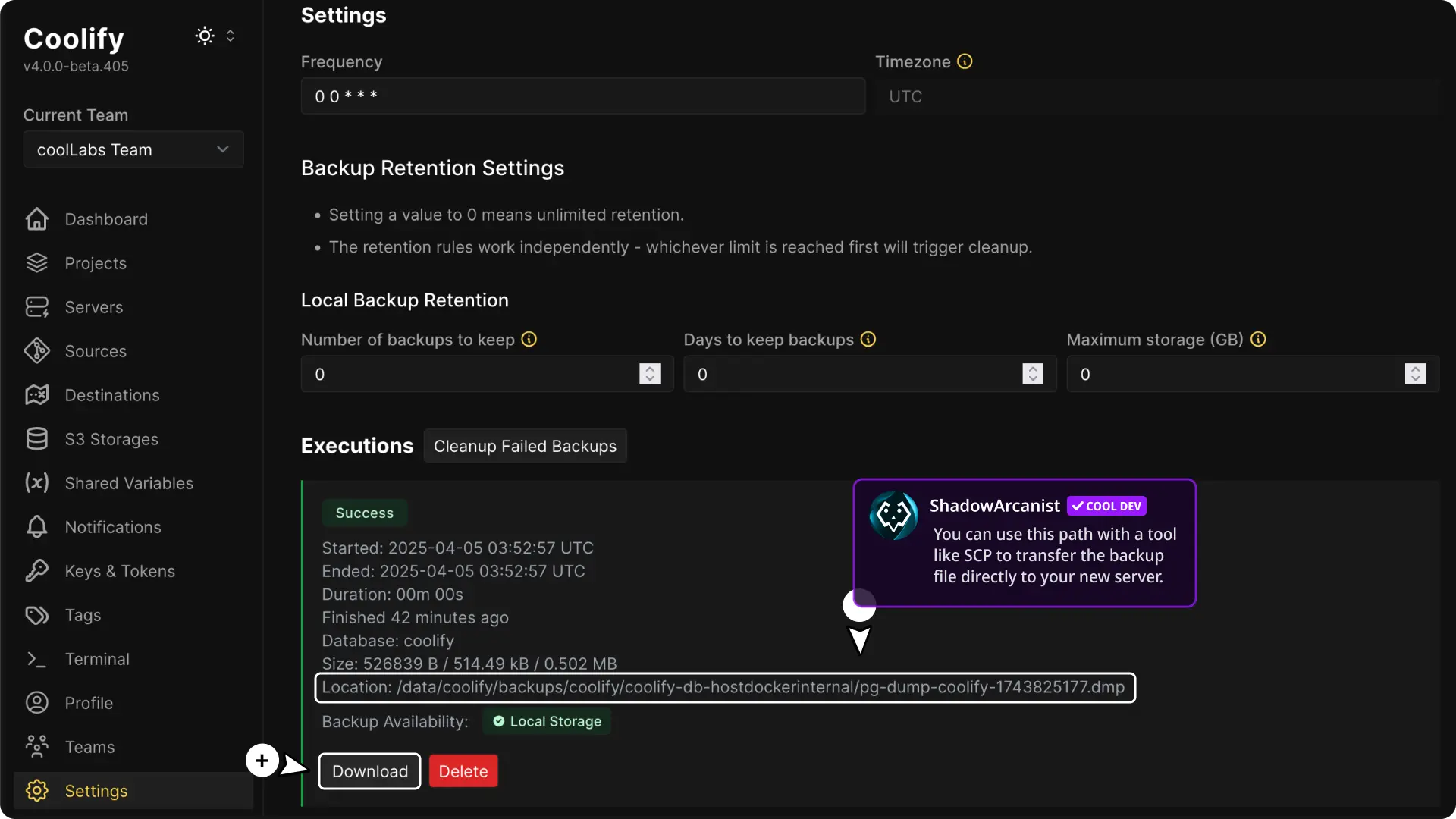
For a usable backup, confirm that the execution shows Success and that at least one storage location is available. Local instance backups are stored under /data/coolify/backups/coolify/coolify-db-<server-ip>/; use the exact Location shown in the execution to find a specific file.
The available actions depend on the execution:
- Download saves a local backup or redirects to an available S3 copy. If the instance uses S3 for file downloads, wait while Coolify prepares the local file for download.
- Delete removes the local backup and can also remove its copies from every S3 destination when selected.
- Clean failed backups removes failed execution records.
- Clean deleted entries removes execution records already marked as deleted from local storage. It does not delete backup files.
Periodically check that you can access the copies stored on another server or your computer. Also confirm that you still have the saved APP_KEY. To test or perform recovery, follow Restore a Coolify instance.